Paste a script instead of a topic
Turn a script you already wrote into scenes and facts to check, and add sources for any number that lacks one.
7 min Getting started
On this page
If you've already written the words, Veltra doesn't rewrite them. It splits your script into scenes, finds every number, and turns each number into a fact to check that needs a source.
Before you start #
- You need the Script editor or Channel admin role on the channel.
- Have your script ready. About 130 words makes a 55-second Short.
- If you know where a number comes from, write the source into the script. A DOI is best, for example
doi:10.xxxx/xxxxx. Veltra uses sources you name.
Paste your script #
- On your home page, select Create a video.
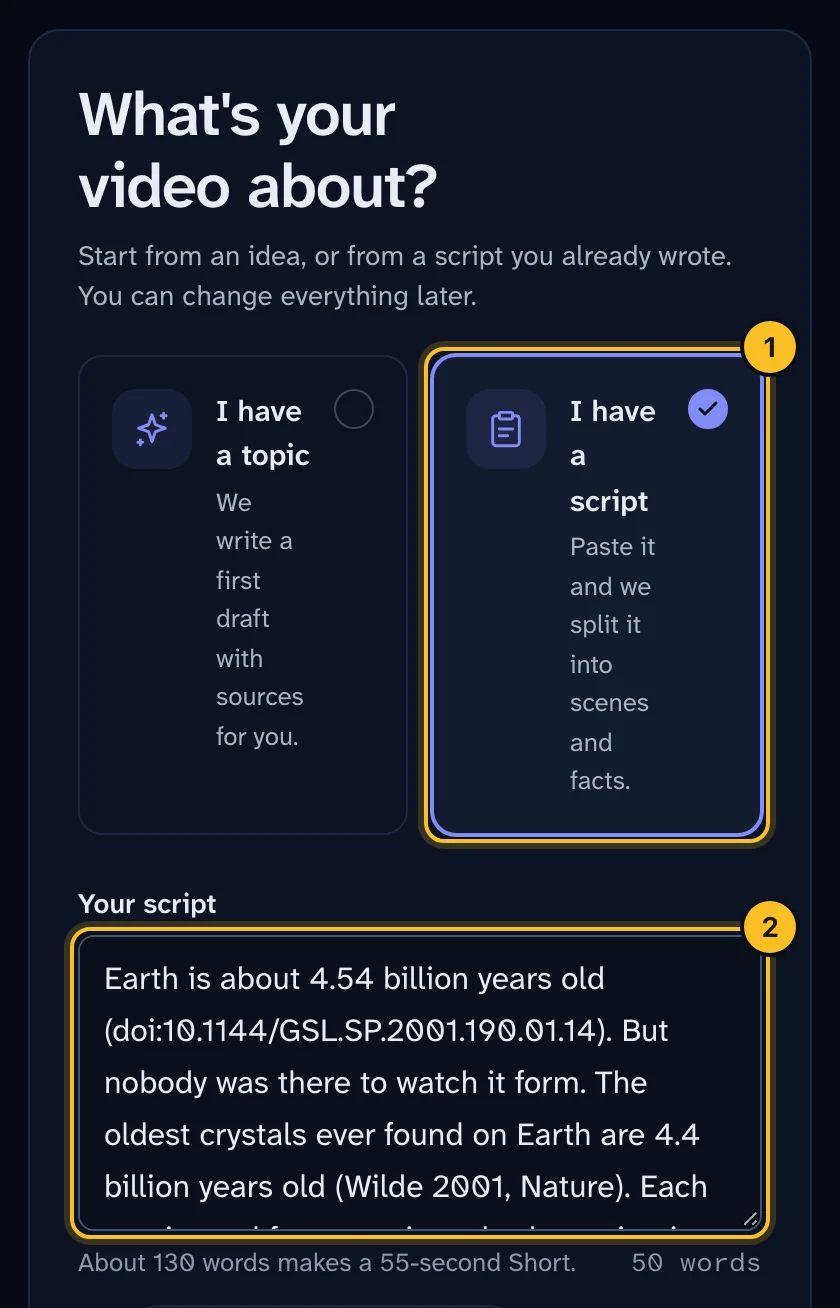
- Choose I have a script.
- Paste it into Your script. The word counter helps you aim for about 130 words.
- Pick a length under How long? and, if you like, a Series.
- Select Write my draft. Structuring a script usually takes a minute or two.
 (opens full size in a new tab)
What Veltra does to your script #
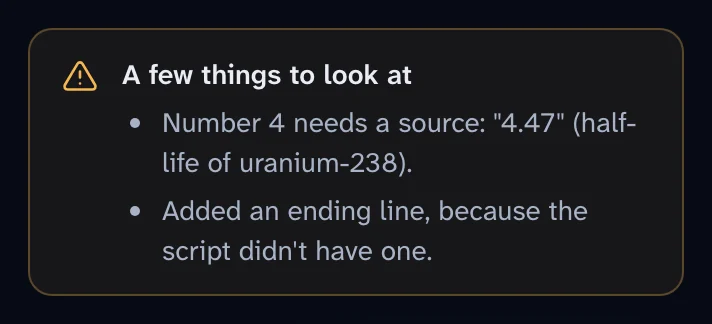
Veltra keeps your wording. It changes words only where a house rule requires it. For example, it rewords a sentence that claims to diagnose, or that describes a risk in a misleading way. Every change it makes is listed under A few things to look at on the next page.
 (opens full size in a new tab)
It also:
- Splits the script into scenes: an opening, the main point, the evidence, why it matters, what to do, and an ending.
- Adds an ending line only if your script doesn't have one.
- Turns every number into a fact to check, shown in the narration as a
{stat:…}token.
How numbers become facts to check #
For each number in your script, Veltra does one of three things:
- You named the source. Veltra uses it.
- The source is well known. If Veltra can identify it with high confidence, it fills it in.
- The source is unclear. Veltra keeps your number exactly as written, leaves the source empty, and adds a warning such as "Number 6 needs a source". It never invents a source to fill the gap.
Framing numbers are the exception. In "44 in 100", the "100" only frames the statistic, so it can stay as plain text.
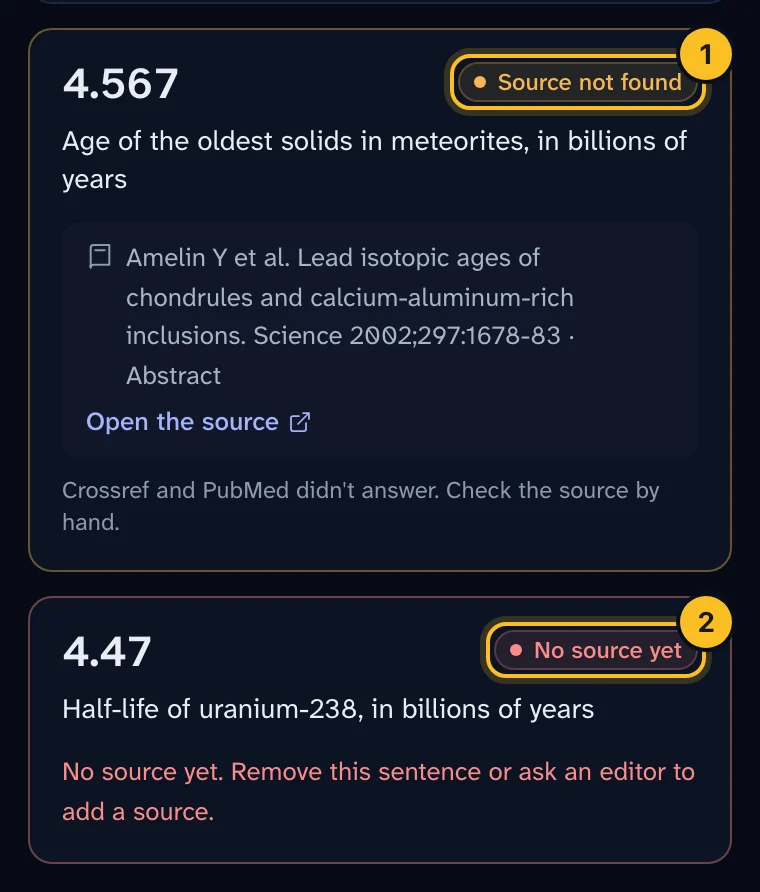
Then Veltra looks up each source's DOI, first in Crossref and then in PubMed. The result is shown as a status on each fact: Source found, Source doesn't match, Source not found, Needs a link or No source yet. For what each status means, see Create your first Short.
 (opens full size in a new tab)
Add a missing source #
A fact with No source yet can't be approved. You have three options.
Option 1: Remove the sentence #
On the Read your draft page, delete the sentence that contains the number. Use this when the number isn't essential.
Option 2: Name the source and start again #
Add the source next to the number in your script, then go back to the first step and select Write my draft again.
Option 3: Add it in the spec editor #
This uses advanced mode. Ask an editor if you're not comfortable with it.
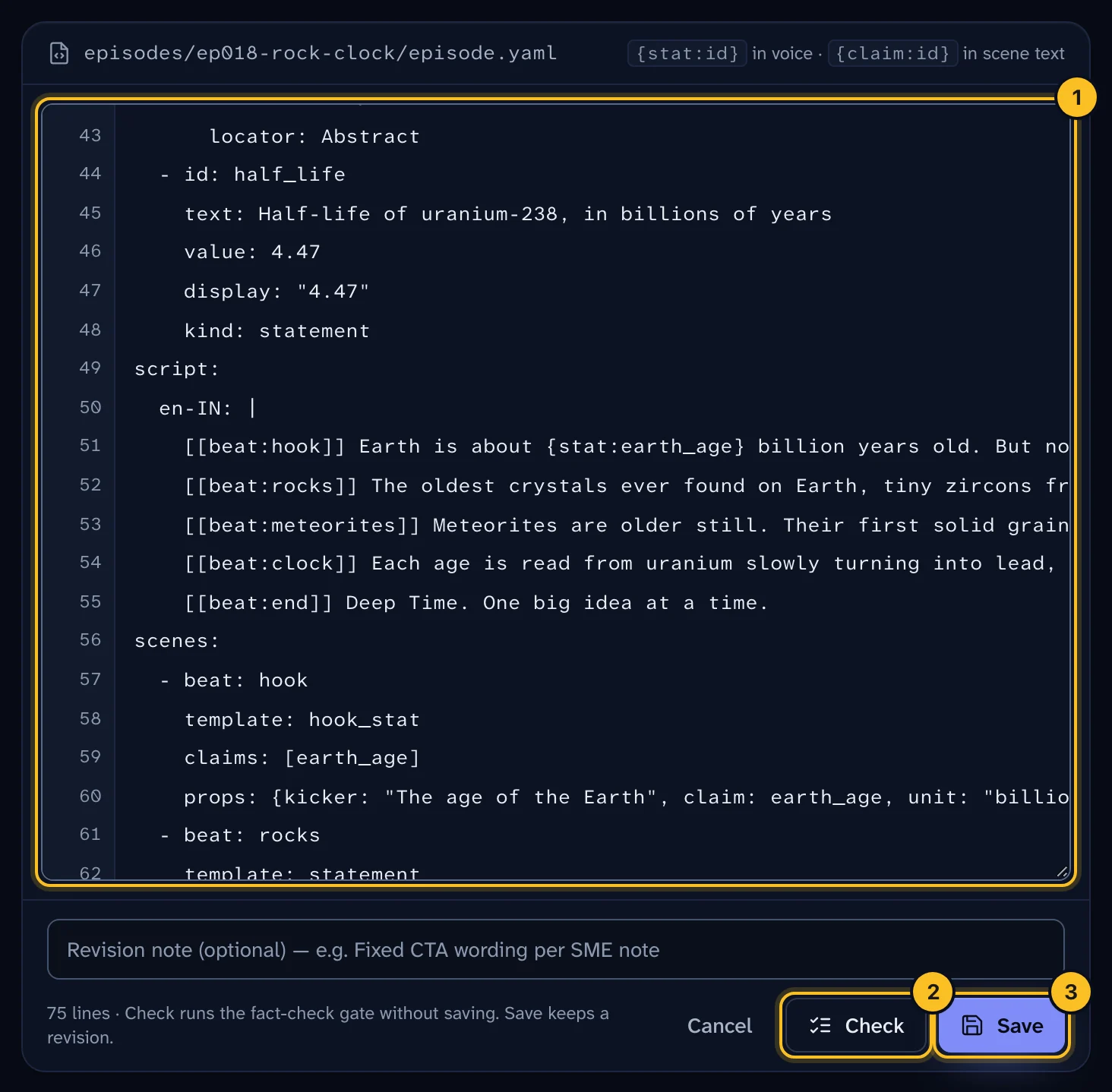
- Open your user menu and choose Advanced under View.
- Open the episode and select Edit spec.
- Find the claim under
claims:and fill in itssource:
claims:
  - id: sleep_hours
    text: Average nightly sleep, adults in the study
    value: 6.4
    display: "6.4"
    source:
      cite: "Author A et al. Full title of the paper. Journal 2024;12(3):45-67"
      chip: "Author 2024 · Journal · n=1,200 · cohort"
      doi: 10.xxxx/xxxxx
      locator: Table 2
- Select Check to run the fact-check without saving.
- When the check passes, select Save. Each save keeps a revision you can restore.
 (opens full size in a new tab)
Fill in locator with where the number appears, such as "Table 2" or "Abstract". Reviewers use it to find the number quickly.
A number calculated from other facts, such as a difference or a ratio, doesn't need its own source. It uses derived_from to point at the facts it comes from, and shows as Worked out.
What happens next #
Continue the wizard as usual: choose the look and sound, make the video, and send it for review. See Create your first Short.
Reviewers then open each source and sign off each fact. Changing a fact's text, value or source later resets its sign-off, so a reviewer must check it again.
Troubleshooting #
My wording changed. Read the list under A few things to look at. Each change has a reason. You can edit the sentence back, but reviewers will hold it to the same rules.
A number shows as plain text, not a token. Every number needs a fact to check, unless it's a framing number. Ask an editor to add the claim in the spec editor. Otherwise the fact-check blocks approval.