Create your first Short
Go from a topic to a sourced draft, then make the video and send it for review.
10 min Getting started
On this page
After this guide, you'll have a finished video waiting for review. The Create a video wizard walks you through five steps. You don't need to know anything about video editing.
Before you start #
- You need an account. Veltra is invite-only. Your organization admin sends you an invite link. Open it, set your name and password, and sign in. Invite links expire after 7 days.
- You need the right role. To create a video, you need the Script editor or Channel admin role on the channel. If you don't see Create a video, ask your admin. See Invite your team and set roles.
- Use simple mode. New accounts start in simple mode, which shows the wizard. If you see the full episode board instead, open your user menu and choose Simple under View.
Step 1: Describe your topic #
- On your home page, select Create a video.
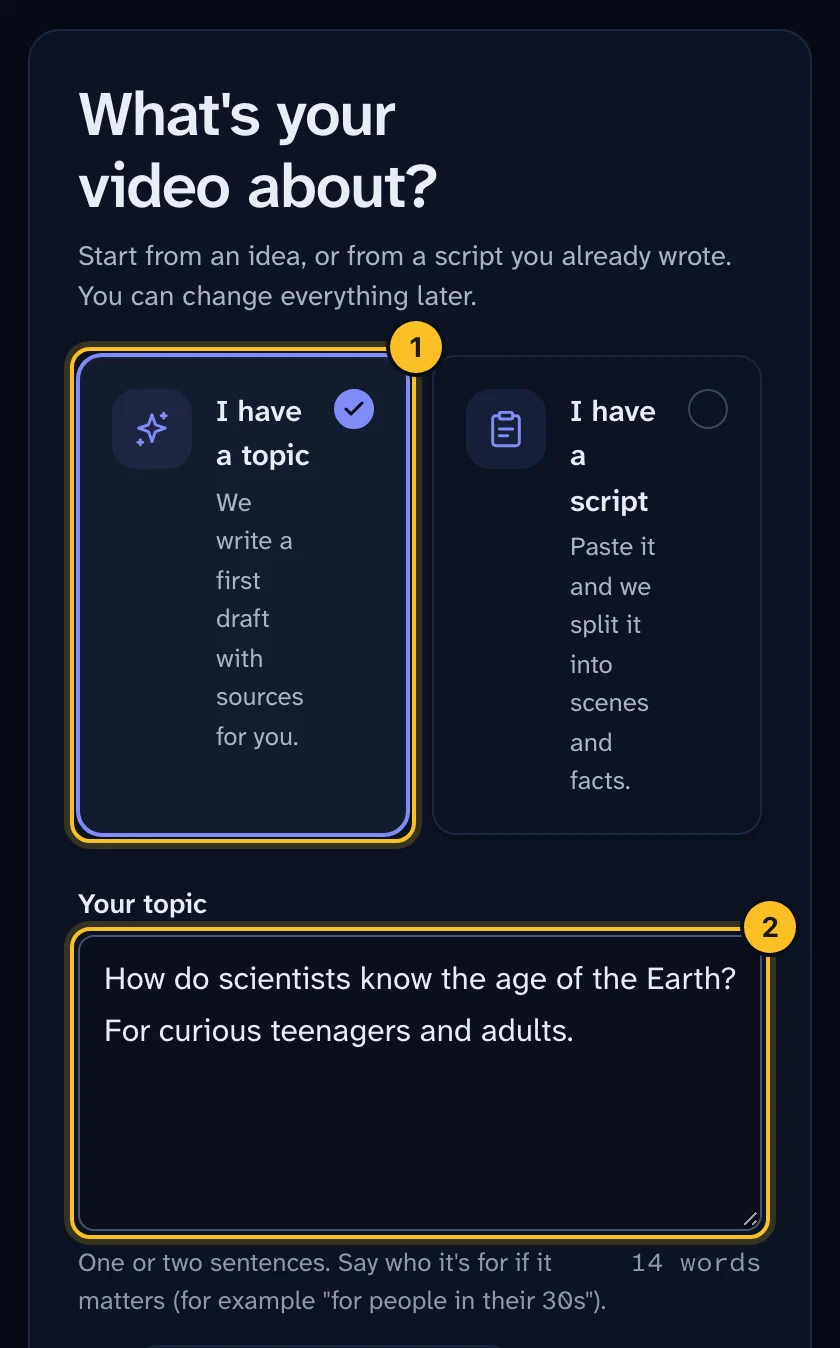
- Under What's your Short about?, choose I have a topic.
- Type one or two sentences in Your topic. Say who it's for if it matters, for example "for people in their 30s".
- Under How long?, pick 45 s, 55 s or 60 s. 55 seconds is recommended; the quality check needs 45–60 seconds.
- Optional: pick a Series to group related Shorts.
- Select Write my draft.
 (opens full size in a new tab)
Writing the draft usually takes a minute or two. You'll see each stage as it happens: reading your topic, writing the narration, and finding a source for each number.
Already have a script? Choose I have a script instead. See Paste a script instead of a topic.
Step 2: Check the draft #
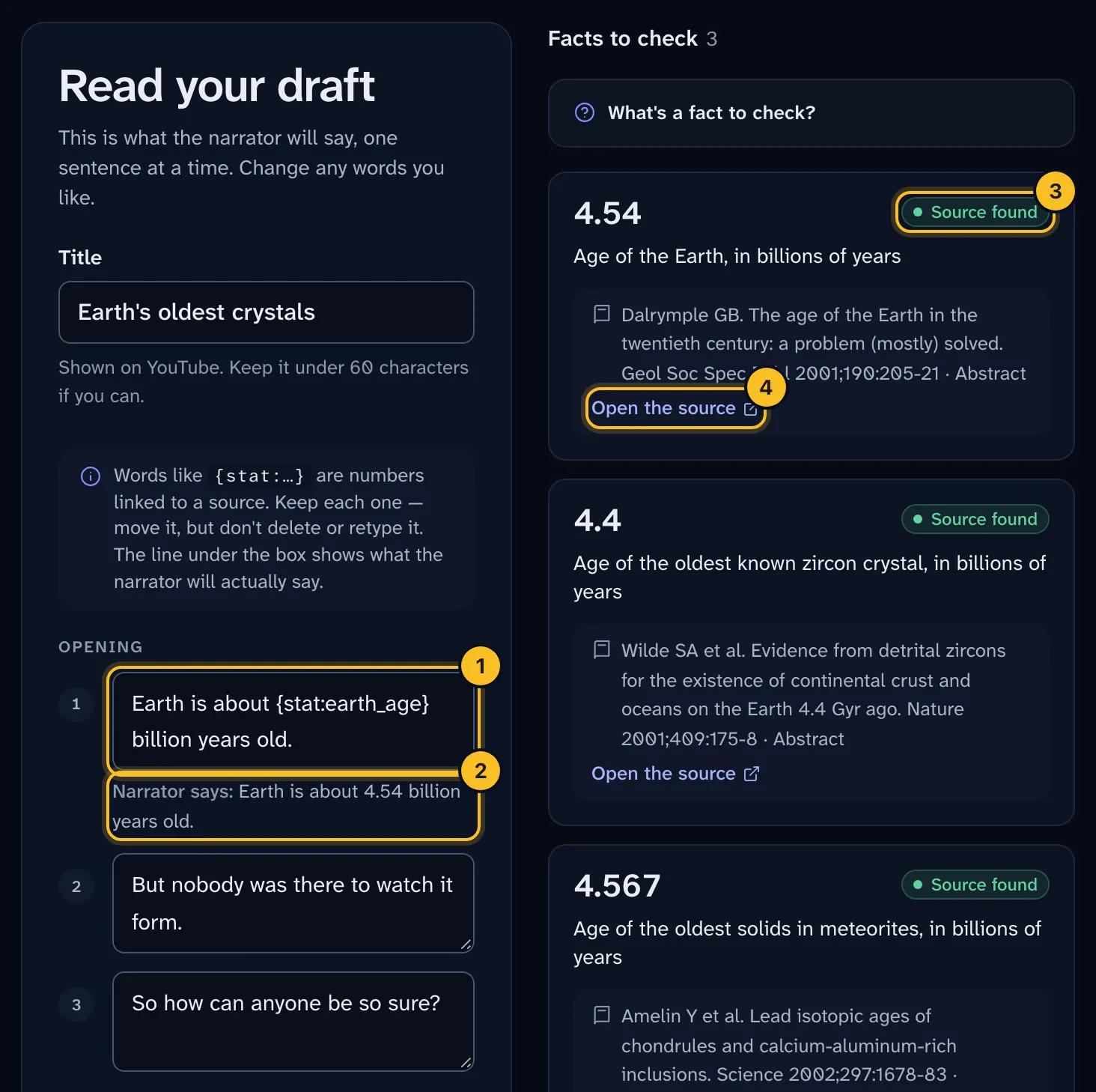
The Read your draft page shows what the narrator will say, one sentence at a time.
- Check the Title. It's shown on YouTube, so keep it under 60 characters if you can.
- Read each sentence. Change any words you like.
- Leave every
{stat:…}token in place. Each one is a number linked to a source. You can move it within the sentence, but don't delete or retype it. The Narrator says: line under the box shows what will actually be spoken. - Look at the Facts to check panel. Every number or health claim in the video is listed there with its source.
- For each fact, select Open the source and make sure the source really says what the sentence says.
- Select Looks good — next.
 (opens full size in a new tab)
Each fact shows a status:
| Status | What it means |
|---|---|
| Source found | The source was found and matches the citation. |
| Source doesn't match | The link points to a different paper or year. Fix it before review. |
| Source not found | The source couldn't be looked up. Check it by hand. |
| Needs a link | The source has no DOI or link yet. |
| No source yet | Remove the sentence, or ask an editor to add a source. |
| Worked out | Calculated from another fact, so it uses that fact's source. |
| Checked by a reviewer | A reviewer has signed this fact off. |
A reviewer signs off every fact later. Your check here catches problems early.
Step 3: Choose the look and sound #
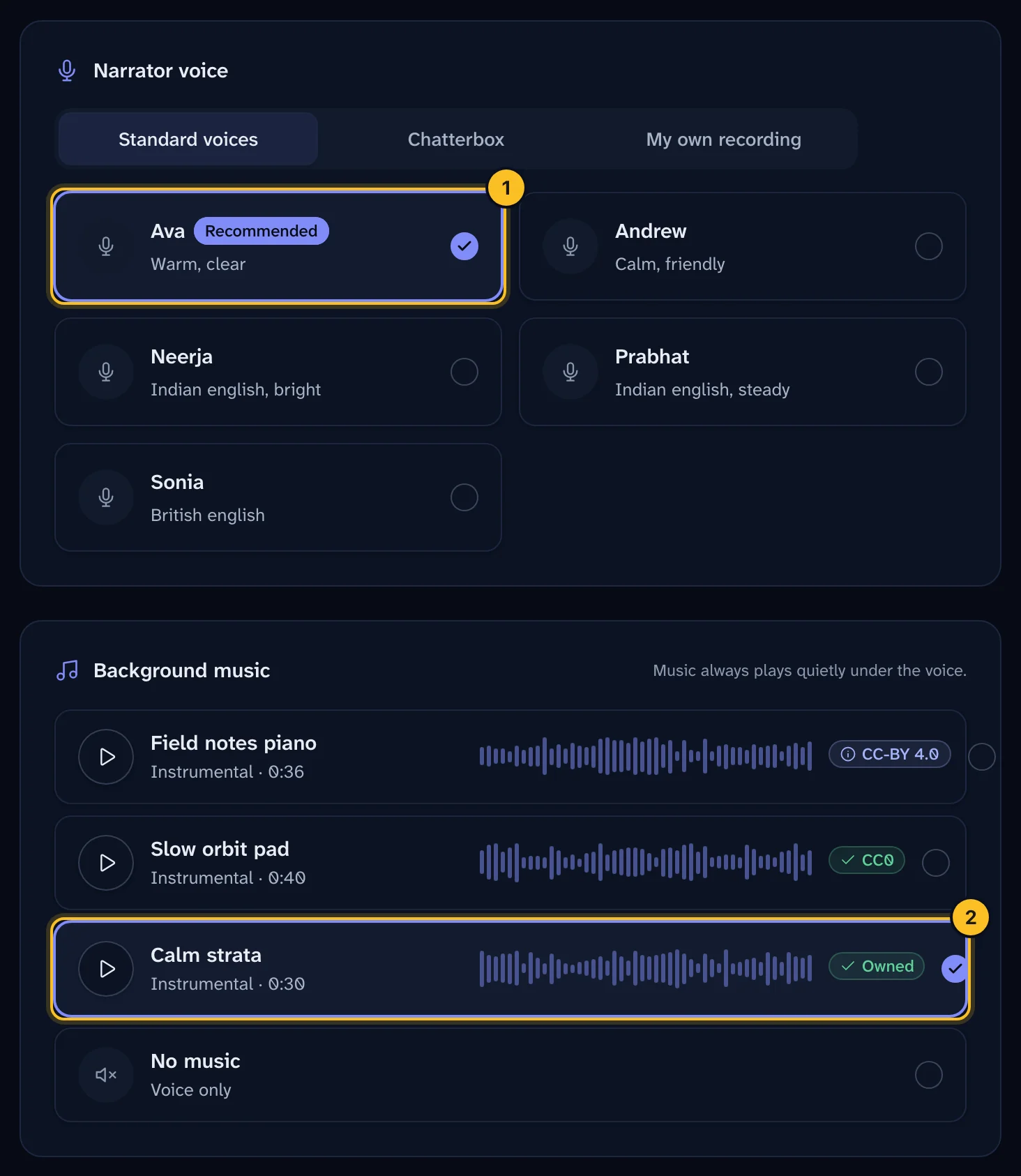
- Under Narrator voice, press play to hear each option, then pick one. The channel's usual choices are already selected.
- Under Background music, pick a track or No music. Music always plays quietly under the voice.
- Under Logo on the video, turn Show logo on or off. If your channel has more than one logo, pick one under Which logo?. The logo goes in the top-left corner, clear of YouTube's buttons and captions.
- Select Next: make the video.
 (opens full size in a new tab)
Step 4: Make the video #
- Select Make the video. It takes about 3 to 5 minutes. Veltra records the voice, adds captions, draws each scene and mixes the sound. You don't need to do anything while it runs.
- When it's ready, watch it once, start to finish, with sound.
- Check that the voice says the numbers clearly and the captions are easy to read.
- If something is off, select Back, change it, then select Make it again.
- When you're happy, select Next: send for review.
Step 5: Send it for review #
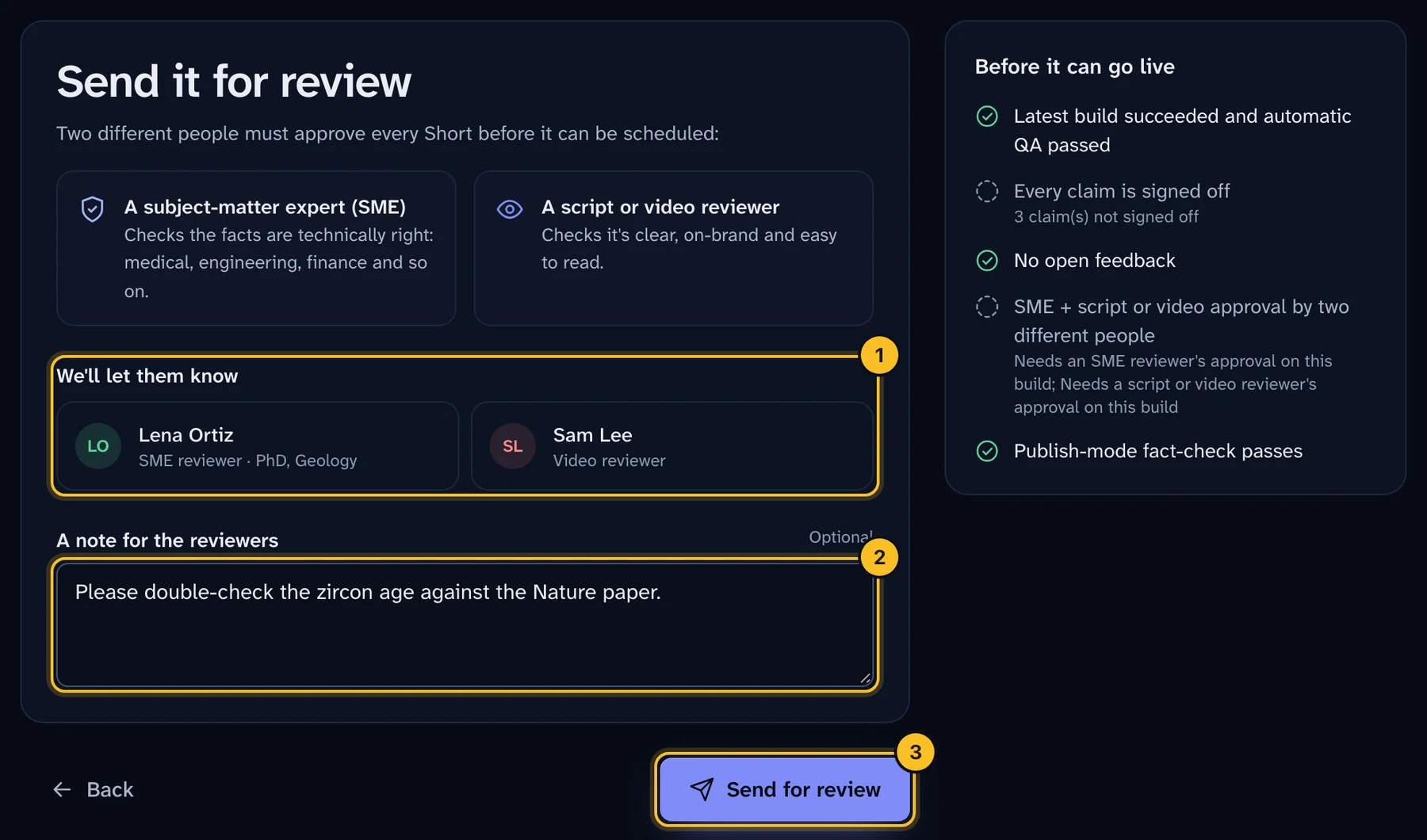
- Optional: add A note for the reviewers, for example "I wasn't sure about the second number — please double-check the source."
- Select Send for review.
 (opens full size in a new tab)
What happens next #
- The channel's reviewers are told. Who approves depends on the channel's approval policy.
- Nothing goes live by itself. AI drafts are never approved automatically.
- If a reviewer asks for changes, the Short appears under Waiting on you on your home page.
- Once it's approved, a channel admin schedules it. See Schedule and publish to YouTube.
To leave the wizard and come back later, select Save & exit.
Troubleshooting #
"We couldn't write the last draft." This is usually temporary, for example when the writing service is busy. Your topic is kept. Select Write my draft again. If it keeps failing, ask an org admin to test the AI keys. See Connect AI and voice providers.
"The video didn't finish." Nothing is lost. Select Try again. If it keeps happening, an editor can open Technical details to see why.
"Our automatic check found something to fix." The video was made, but an automatic quality check failed. See Troubleshooting.