Invite your team and set roles
Invite people by email, give them an organization role and roles per channel, and keep the two-person approval rule working.
7 min Admin
On this page
Veltra is invite-only. People join your organization through an invite link, and each person gets roles on each channel. Roles decide what they can see and change.
Before you start #
- You need to be an organization Owner or Org admin.
- Decide who will review. That depends on the channel's approval policy (Settings, Review & evidence). With One approver you can run the channel alone. Two people needs two reviewers. SME technical review needs an SME reviewer (a subject-matter expert: medical, engineering, finance, etc.) and a different script or video reviewer.
How roles work #
There are two kinds of role.
Organization roles apply across your whole organization:
| Organization role | What they can do |
|---|---|
| Owner | Everything, including transferring ownership. |
| Org admin | Members, invites, channels, API keys and the app palette. Channel admin on every channel. |
| Member | Access only through the channel roles you give them. |
Channel roles apply to one channel. A person can hold several:
| Channel role | What they can do |
|---|---|
| Channel admin | Everything in the channel: YouTube, schedule, settings and members. |
| Script editor | Creates and edits episodes, makes videos, fixes notes. |
| Script reviewer | Reviews the script and signs off facts. |
| SME reviewer | Subject-matter expert (medical, engineering, finance, etc.). Checks technical accuracy and signs off facts. Required for approval only on channels that use the SME technical review policy. |
| Video reviewer | Reviews the finished video: visuals, captions and sound. |
| Commenter | Adds correction notes only. |
| Visual editor | Places logos and brand assets on the video. |
| Audio mixer | Picks music and sets the sound levels. |
| Viewer | Can look at everything, change nothing. |
Step 1: Send an invite #
- Open Settings, then Members & invites.
- Under Invite people, enter the person's Email, for example
editor@theveltra.com. - Choose an Organization role. Most people should be Member.
- Under Channel roles, tick the roles they need on each channel.
- Select Send invite.
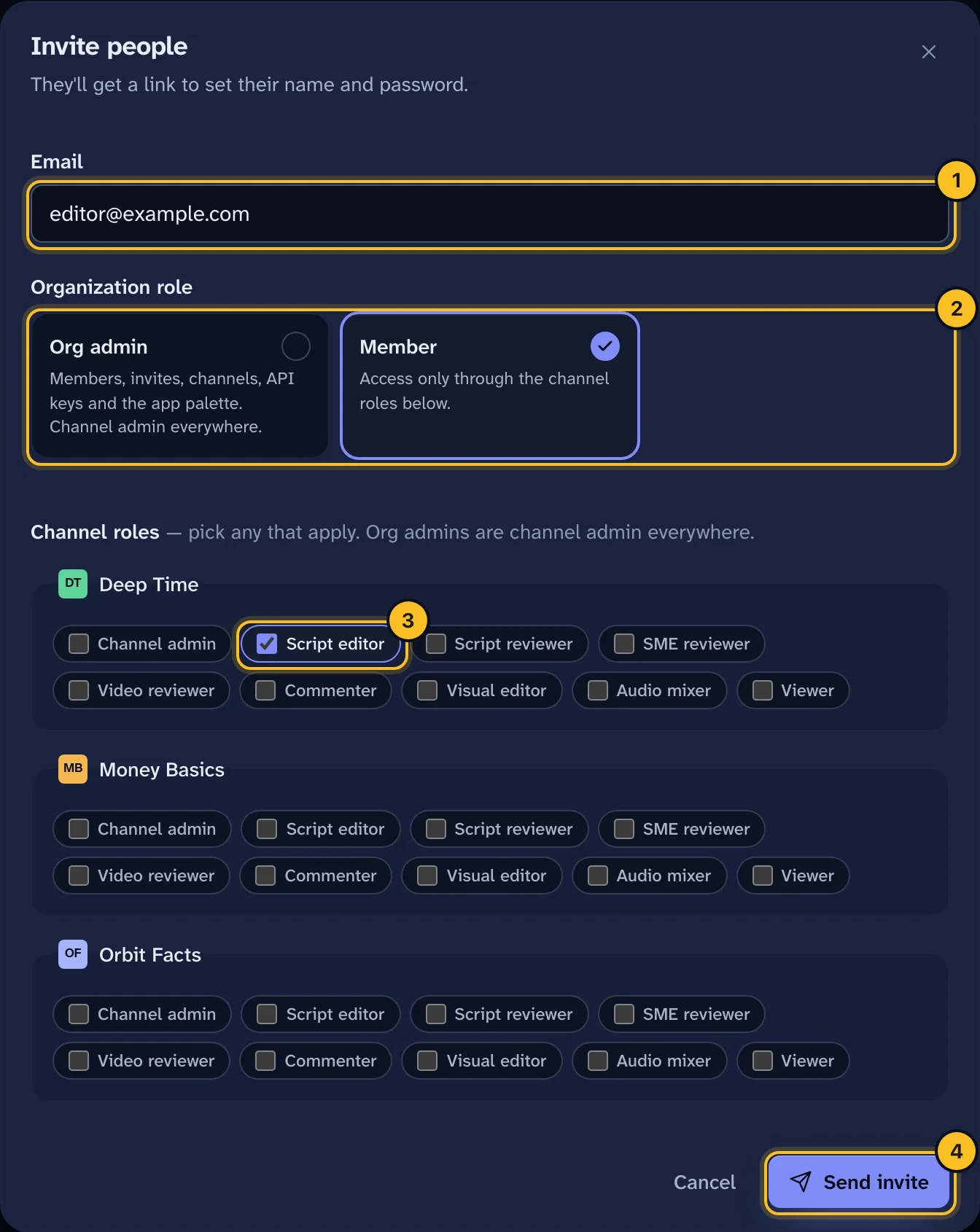 (opens full size in a new tab)
They'll get an email with a link to set their name and password.
If your installation doesn't send email, Veltra shows the invite link instead. Select Copy invite link and send it to them yourself.
Step 2: Manage pending invites #
Invites appear under Pending invites until someone accepts them.
- Each link works once and expires after 7 days.
- Resend sends the email again.
- New link makes a fresh link. The old one stops working.
- Revoke cancels the invite. The link stops working.
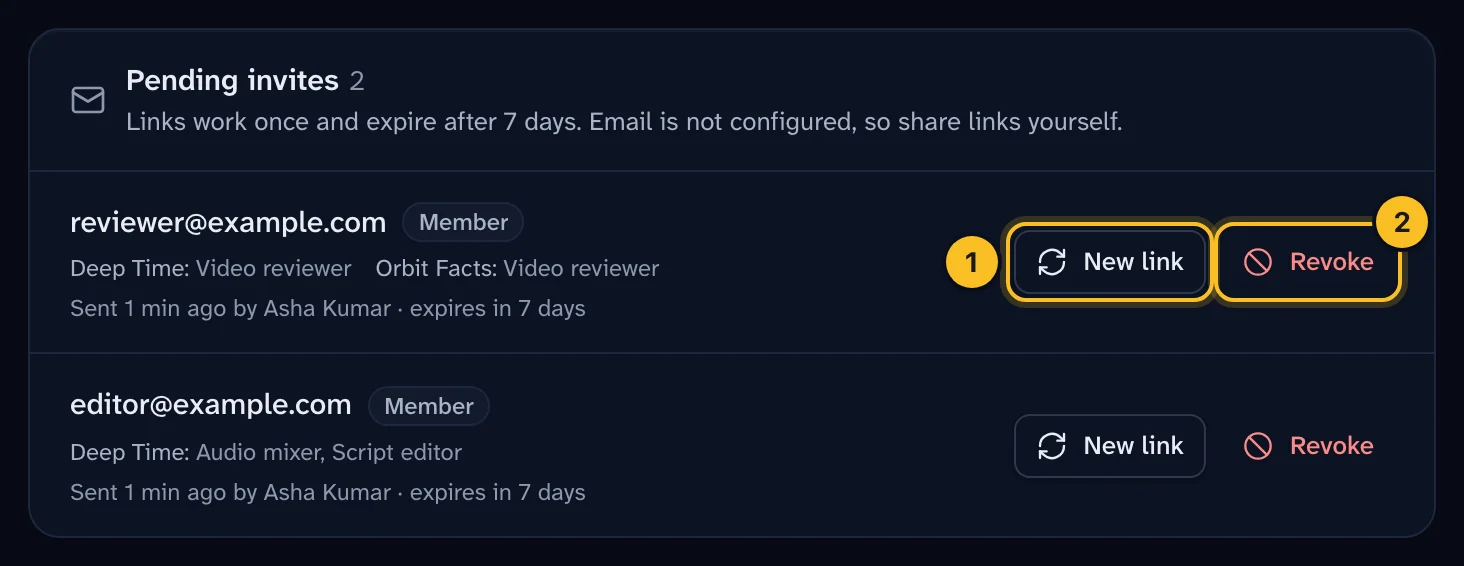 (opens full size in a new tab)
Step 3: Accepting an invite #
The person you invited opens the link and sets their name and password. If they already have a Veltra account with that email, they sign in, and the new roles are added to their account.
Step 4: Change someone's roles #
- In Members & invites, find the person under Members.
- Select Edit roles.
- Change their organization role or channel roles.
- Select Save roles.
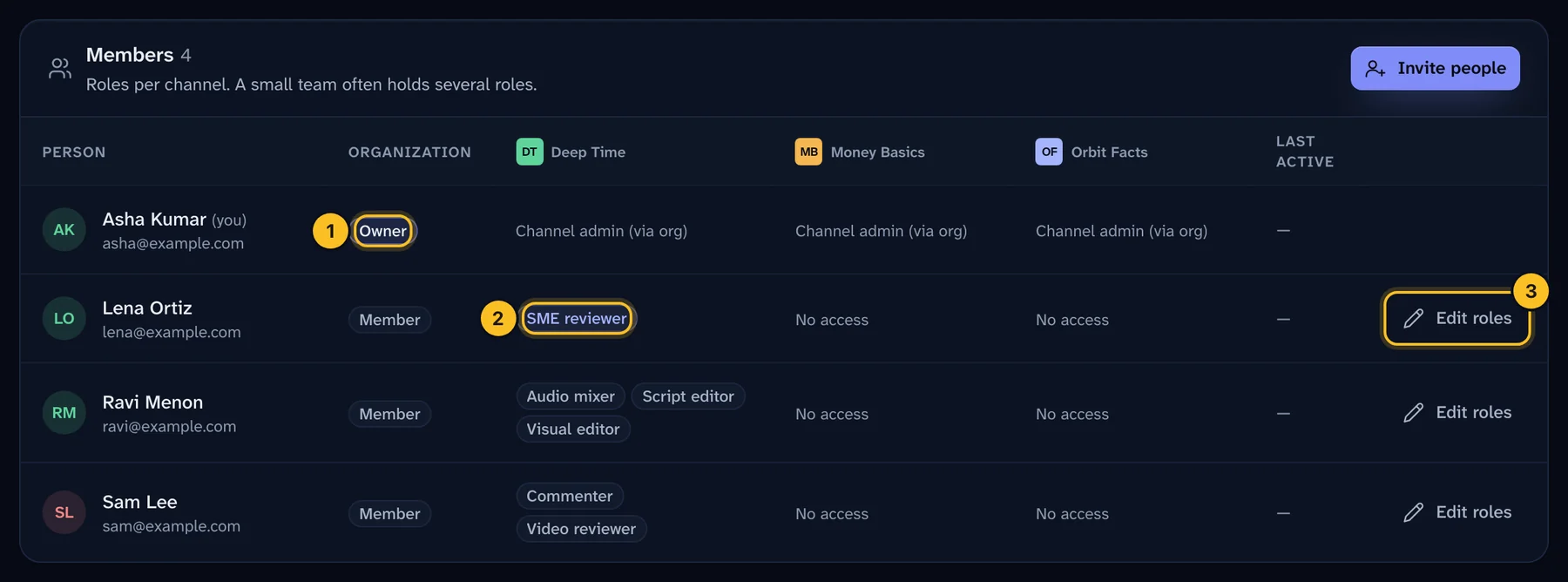 (opens full size in a new tab)
Changes apply straight away. The owner's roles can't be edited here.
Example: a small team #
A small team often holds several roles. Here's one way to set up a team of three on one channel:
| Person | Channel roles |
|---|---|
producer@theveltra.com |
Script editor, Visual editor, Audio mixer, Video reviewer |
doctor@theveltra.com |
SME reviewer |
lead@theveltra.com |
Channel admin |
With the SME technical review policy on a health channel, the producer makes the Short, the doctor approves as SME reviewer, and the producer or the lead approves as video reviewer. That's two different people, so the rule is met.
Under Two people or SME technical review, holding several reviewer roles doesn't let you approve alone: one person always counts once. Under One approver, a solo owner simply approves their own video.
What happens next #
New members see the channels you gave them. New accounts start in simple mode, with the Create a video wizard. Share Create your first Short with editors, and Review and approve an episode with reviewers.
Troubleshooting #
"You do not have access to any channel yet." The person has no channel roles. Select Edit roles and give them at least one.
The invite link doesn't work. It may have expired, been used, or been replaced. Select New link and send it again.
Nobody can approve. Check the policy in Settings. For SME technical review, the channel needs an SME reviewer and a different script or video reviewer. For Two people, it needs two people with a reviewer role.