Clone a voice with Chatterbox
Narrate with Chatterbox, the open-source voice. Clone a voice from a short clip with consent, set how expressive it sounds, and preview it before you build.
7 min Publishing
On this page
Chatterbox is an open-source text-to-speech model from Resemble AI, released under the MIT licence. It speaks 23 languages, including English and Hindi, and it can copy a voice from a clip of 10 to 15 seconds. Veltra doesn't run it on its own servers. Your organization connects either its own Chatterbox server or a DeepInfra account, and pays that provider directly.
Before you start #
- An org admin has connected Chatterbox and routed Narration voice to it. See Connect your AI providers.
- You can change the narration: you're a channel admin, script editor or audio mixer.
- To clone a voice you need a clean clip of one person speaking, and the right to use it.
Step 1: Record a reference clip #
Record 10 to 15 seconds of natural speech. Anything from 5 to 30 seconds is accepted.
- One speaker, no music, no background noise.
- Speak the way you want the narration to sound: calm clips give calm narration.
- WAV or FLAC is best. MP3, M4A and OGG work too.
Use the language the clip is spoken in. A Hindi clip clones best for Hindi narration.
Step 2: Add the voice, with consent #
- Open the episode and select Narration.
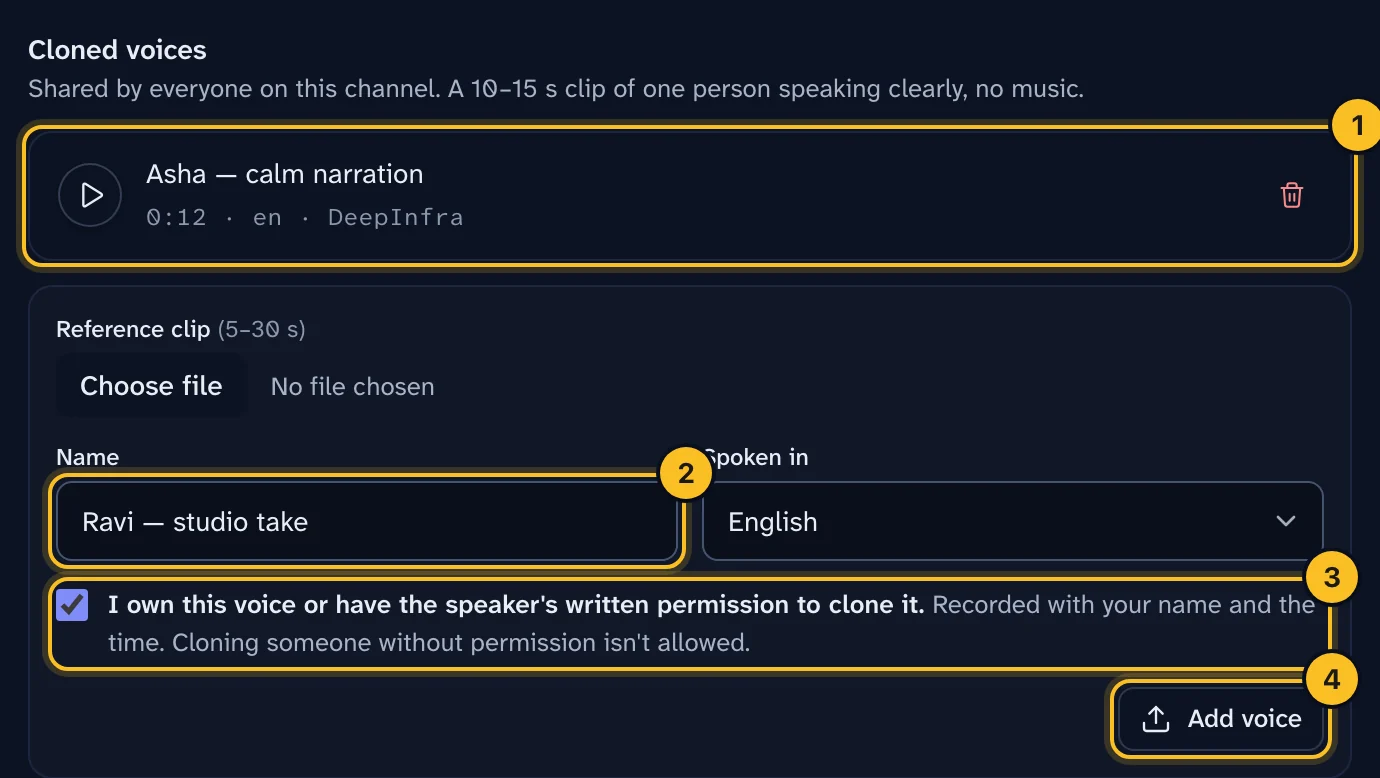
- In the Chatterbox panel, under Cloned voices, choose the clip, give it a name and pick the language.
- Tick I own this voice or have the speaker's written permission to clone it.
- Select Add voice.
 (opens full size in a new tab)
You can't add a clip without ticking the box. Veltra records who confirmed it and when, in the organization's activity log. Never clone someone without their written permission.
Cloned voices belong to the channel, so everyone on it can use them. Veltra registers the clip with your Chatterbox service once, so builds don't upload it again.
Step 3: Choose the voice #
In the same panel:
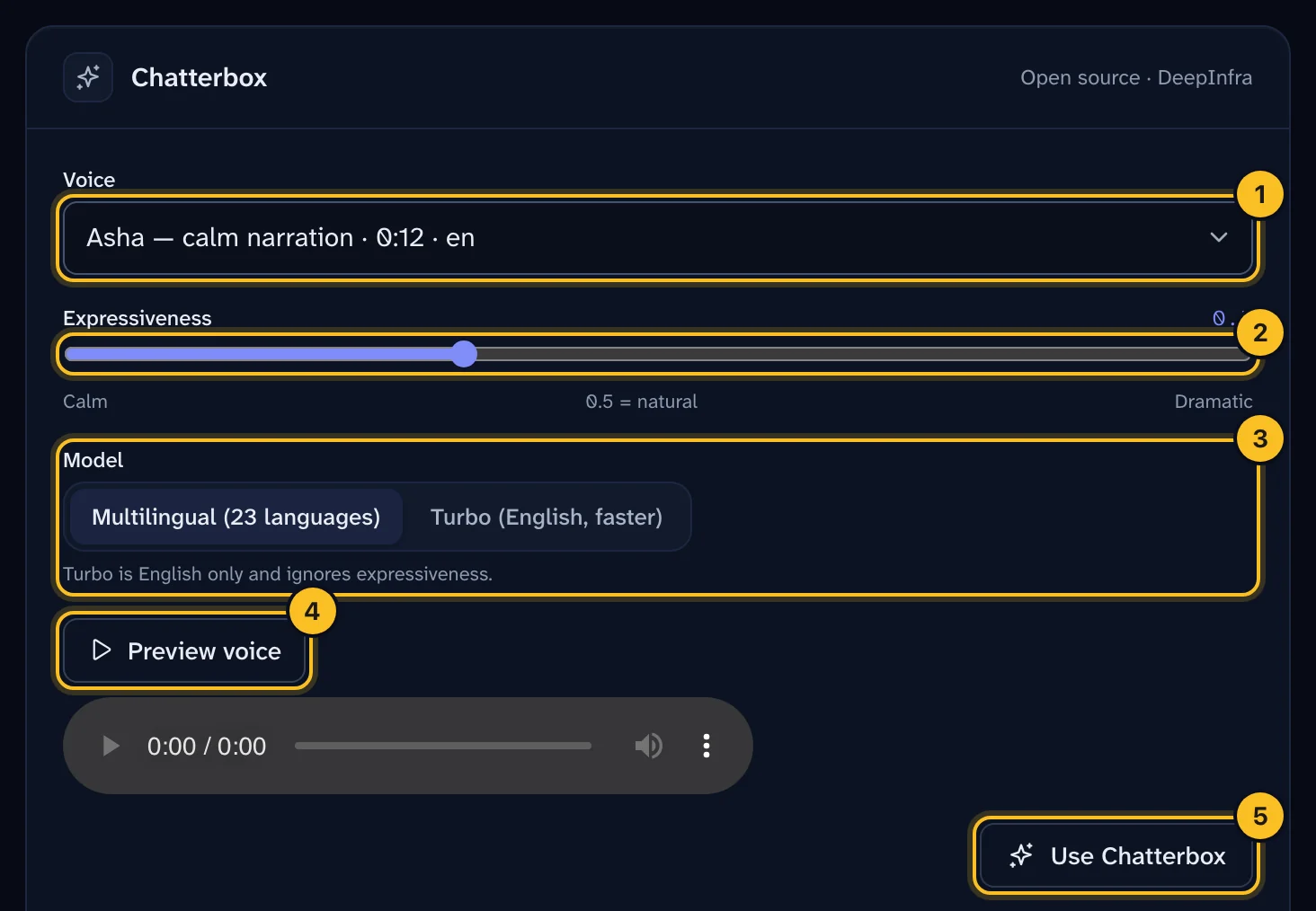
- Voice: the default voice, or one of your cloned voices. With your own server, you can also type the name of a voice already stored on it.
- Expressiveness: 0.5 sounds natural. Lower is calmer. Higher is more dramatic, but it may rush or slur words.
- Model: Multilingual speaks all 23 languages. Turbo is faster, English only, and ignores expressiveness.
Select Use Chatterbox. The Create a video wizard offers the same choices at Look & sound.
 (opens full size in a new tab)
Step 4: Preview it #
Select Preview voice. Veltra speaks the first line of your script with your settings, in a few seconds. Change the expressiveness and preview again until it sounds right. Each person can make 10 previews every 10 minutes.
Step 5: Make the video #
Build as usual. Veltra splits the script into sentences, has Chatterbox speak each one, and joins them. Chatterbox doesn't report when each word is spoken, so Veltra listens to the result with Whisper to time the captions, as it does for your own recordings.
If Whisper hears less than 60% of the script, the build stops, because the voice didn't say the words. Between 60% and 85% you get a warning. Try a lower expressiveness or another voice.
If Chatterbox isn't connected or routed when you build, the video uses the built-in voice and the quality check flags it.
Labels and watermarks #
Every Chatterbox file carries an inaudible watermark that identifies it as AI-generated. Veltra also declares these videos as altered or synthetic content when it uploads them to YouTube, as it does for every synthetic voice.
Remove a cloned voice #
In Cloned voices, select the bin next to the voice. Veltra deletes the clip and asks your Chatterbox service to delete its copy. A voice used by an episode can't be removed: switch that episode to another voice first.
Troubleshooting #
Chatterbox isn't offered. An org admin needs to connect it and route Narration voice to Chatterbox.
"Chatterbox can't narrate in this language". The episode's language isn't one of the 23. Use another voice.
The preview fails. Ask an admin to select Test connection in Settings, then API keys.
For more, see Use your own voice and Troubleshooting.