Brand your videos: logos and safe zones
Upload logos, place them with the visual editor, keep them clear of YouTube's buttons, and use a light logo on dark scenes.
7 min Publishing
On this page
Your logo should be visible in every Short without covering YouTube's own buttons or your captions. The visual editor shows you exactly where the safe space is.
Before you start #
- You need the Visual editor or Channel admin role on the channel.
- Have your logo as a file. A transparent PNG or an SVG looks best on video.
- If your logo is dark, also prepare a light version, for example white on a transparent background. You'll use it on dark scenes.
Step 1: Upload your logo #
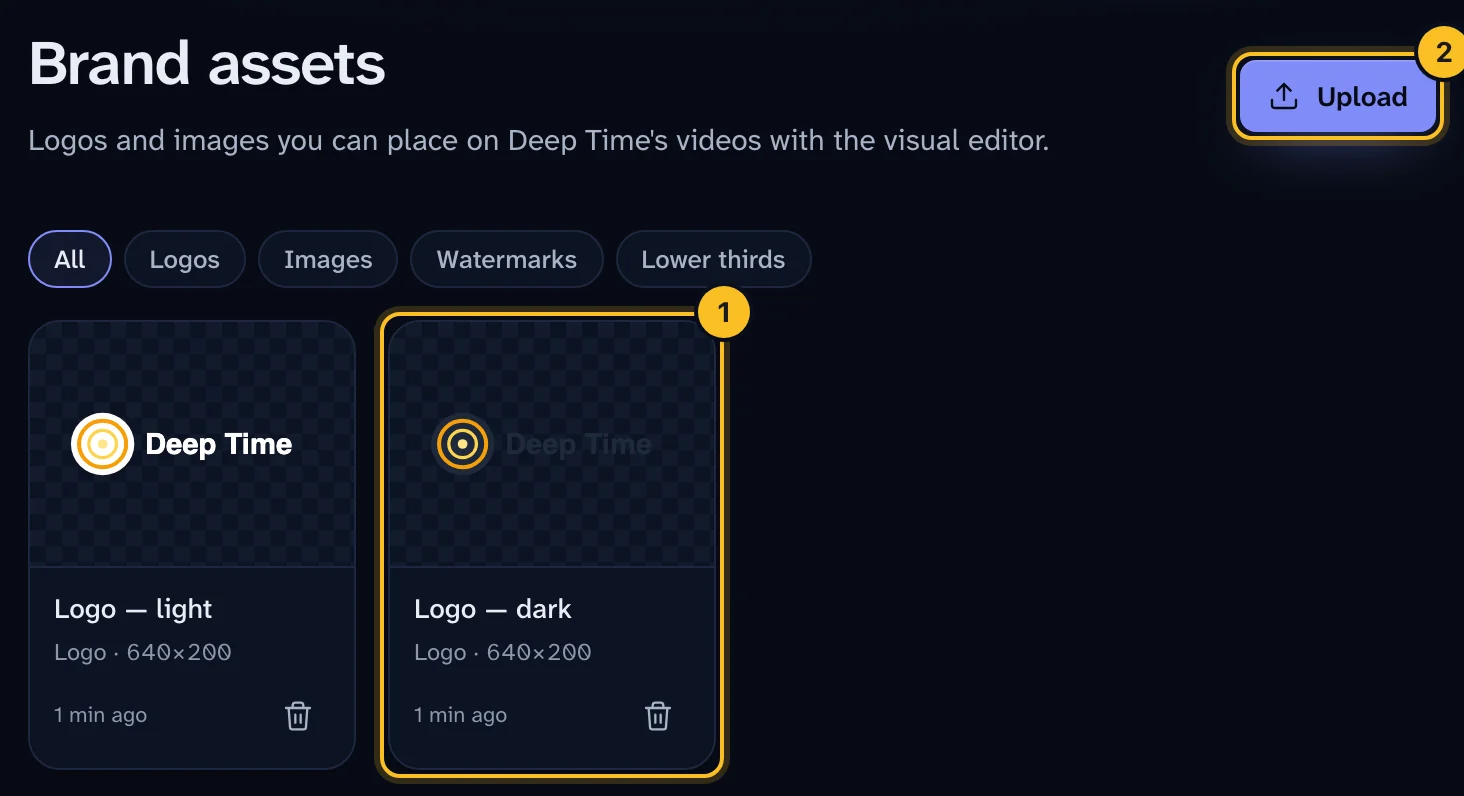
- Open Brand assets from the main menu. In simple mode it's called Logos & images.
- Drop your files into the upload box, or select browse. PNG, SVG, JPG and WebP files up to 10 MB are accepted.
- Set the Kind: Logos, Images, Watermarks or Lower thirds.
- Optional: give it a Name. Otherwise the file name is used. Use clear names, such as "Logo — dark" and "Logo — light".
- Select Upload.
 (opens full size in a new tab)
Logos you upload here appear in the Create a video wizard, under Logo on the video.
Step 2: Understand the safe zones #
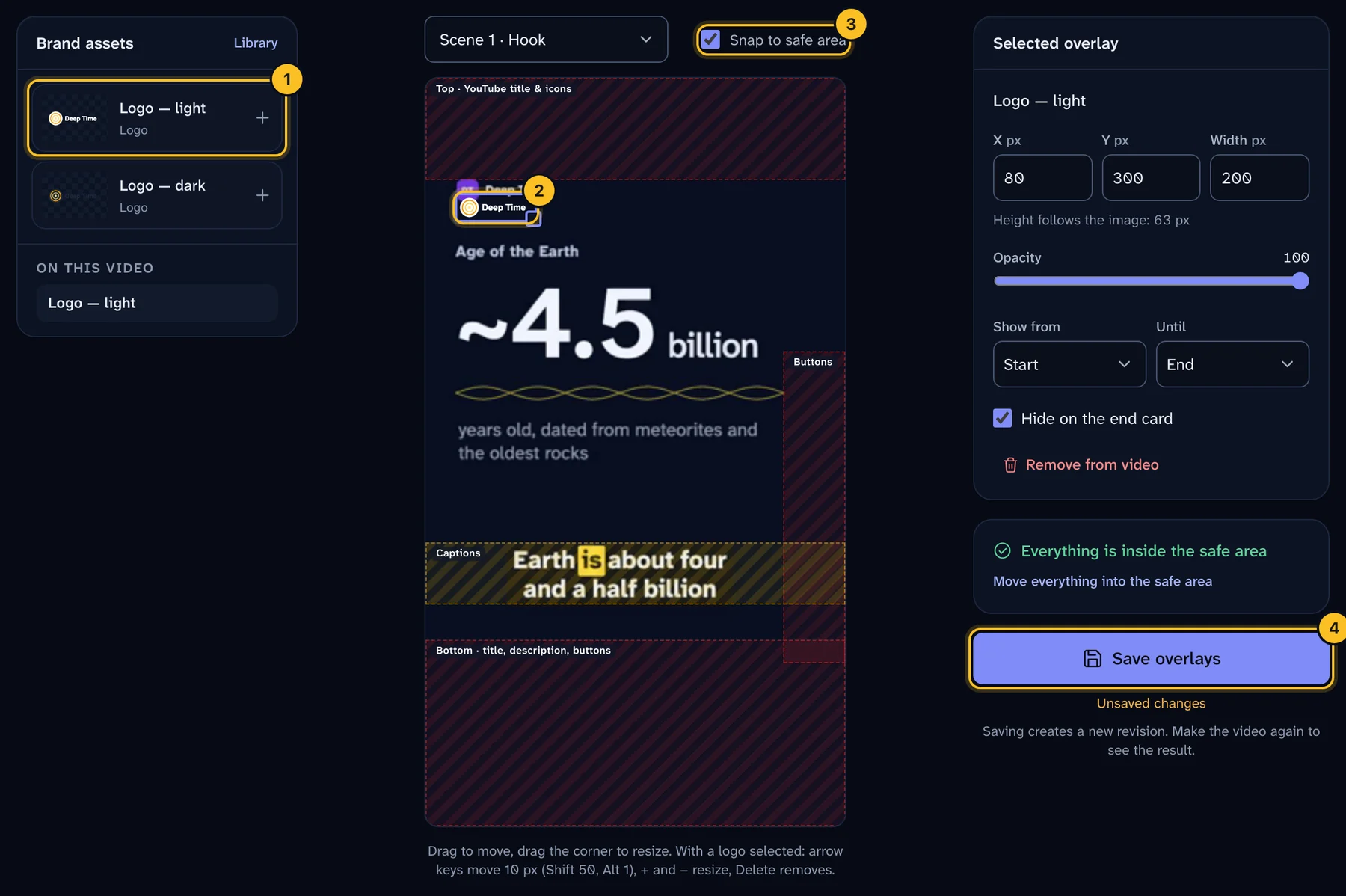
YouTube draws its own title, buttons and icons on top of every Short. Anything underneath them is hard to see. Veltra's frame is 1080 × 1920 pixels, and these areas must stay clear:
| Area | Rule |
|---|---|
| Top | Nothing above 260 px from the top (YouTube's title and icons). |
| Bottom | Nothing below 1440 px (title, description and buttons). |
| Right rail | Nothing right of 920 px between 700 px and 1500 px down (like, comment and share buttons). |
| Captions band | 1190 px to 1350 px down stays clear for captions. |
| Size | All overlays together cover at most 25% of the frame. |
You don't need to measure. The editor shows these areas in red, and the automatic quality check rejects a video with an overlay in them.
Step 3: Place the logo #
- Open the episode and select Visuals. You need advanced mode for this. Open your user menu and choose Advanced under View.
- Under Brand assets, pick your logo to add it to the frame.
- Drag it to move it. Drag the corner to resize it. Height follows the image's shape.
- With the logo selected, you can also use the keyboard. Arrow keys move it 10 px. Hold Shift for 50 px, or Alt for 1 px. Use + and − to resize, and Delete to remove it.
- Under Selected overlay, set the Width and Opacity if needed.
- Leave Hide on the end card on, so the end card stays clean.
- Select Save overlays.
 (opens full size in a new tab)
If something is in a red area, select Move everything into the safe area. Turn on Snap to safe area to keep it there while you drag.
Saving creates a new revision. Make the video again to see the result.
Step 4: Use a light logo on dark scenes #
Most scenes have a light background. A few scenes use a dark theme for mood. A dark logo can disappear on them.
Use Scene to preview to check each scene behind your logo. You need to have made the video once to see the scenes.
To switch logos on dark scenes:
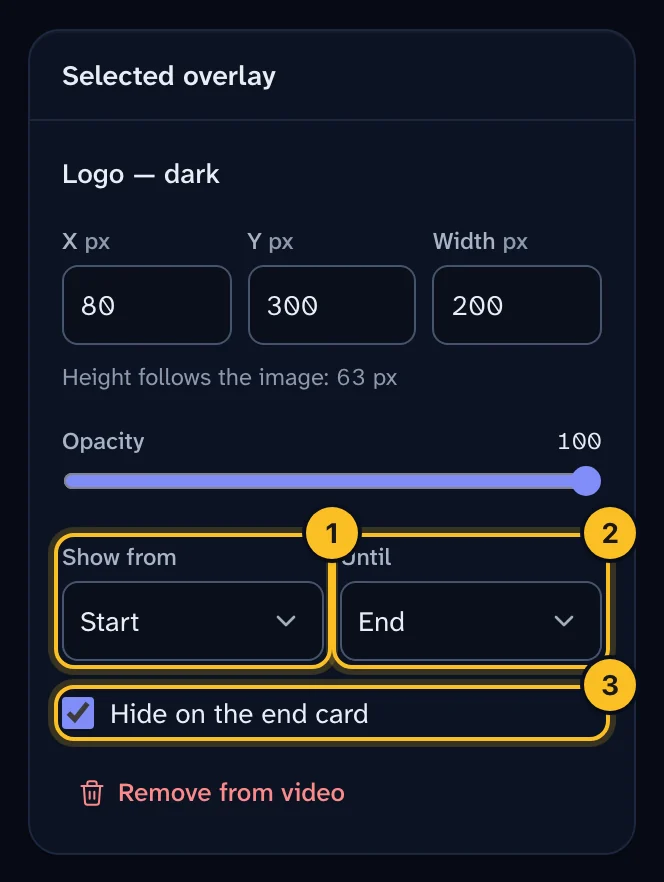
- Select your usual logo. Under Show from and Until, limit it to the light scenes.
- Add your light logo. Set Show from and Until to cover the dark scenes.
- Put both in the same position.
- Select Save overlays.
 (opens full size in a new tab)
When you save a logo, Veltra may warn that it "may be hard to see on dark scenes". The warning goes away for a light logo variant marked with the on-dark tag. Ask your channel admin if you need a logo tagged.
What happens next #
Make the video again, then watch it through. Reviewers check the safe zones as part of the QC checklist. See Review and approve an episode.
Troubleshooting #
"No brand assets yet." Nobody has uploaded a logo for this channel. Select Upload a logo.
I can't see Visuals on the episode. You need the Visual editor role and advanced mode.
"This episode can't be changed in its current status." Scheduled and published episodes are locked. You can still change an approved episode, but saving sends it back to Needs changes, and it must be reviewed again.
The quality check failed with "overlays inside safe zones". An overlay is in a red area. Open Visuals, select Move everything into the safe area, save, and make the video again.