Schedule and publish to YouTube
Connect your channel, set a publishing cadence, and let approved Shorts upload as private videos that go public on time.
8 min Publishing
On this page
Veltra uploads each approved Short to YouTube as a private video with a scheduled publish time. YouTube then makes it public at that time. You set the rhythm once, and Veltra fills the slots.
Before you start #
- You need the Channel admin role. Org owners and org admins are channel admin on every channel.
- You need access to the Google account that owns the YouTube channel.
- Only Approved episodes can be scheduled. See Review and approve an episode.
Step 1: Connect your YouTube channel #
- Open Settings, then the Channel section.
- Under YouTube connection, select Connect YouTube.
- Google sign-in opens. Choose the Google account that owns the channel, and allow access.
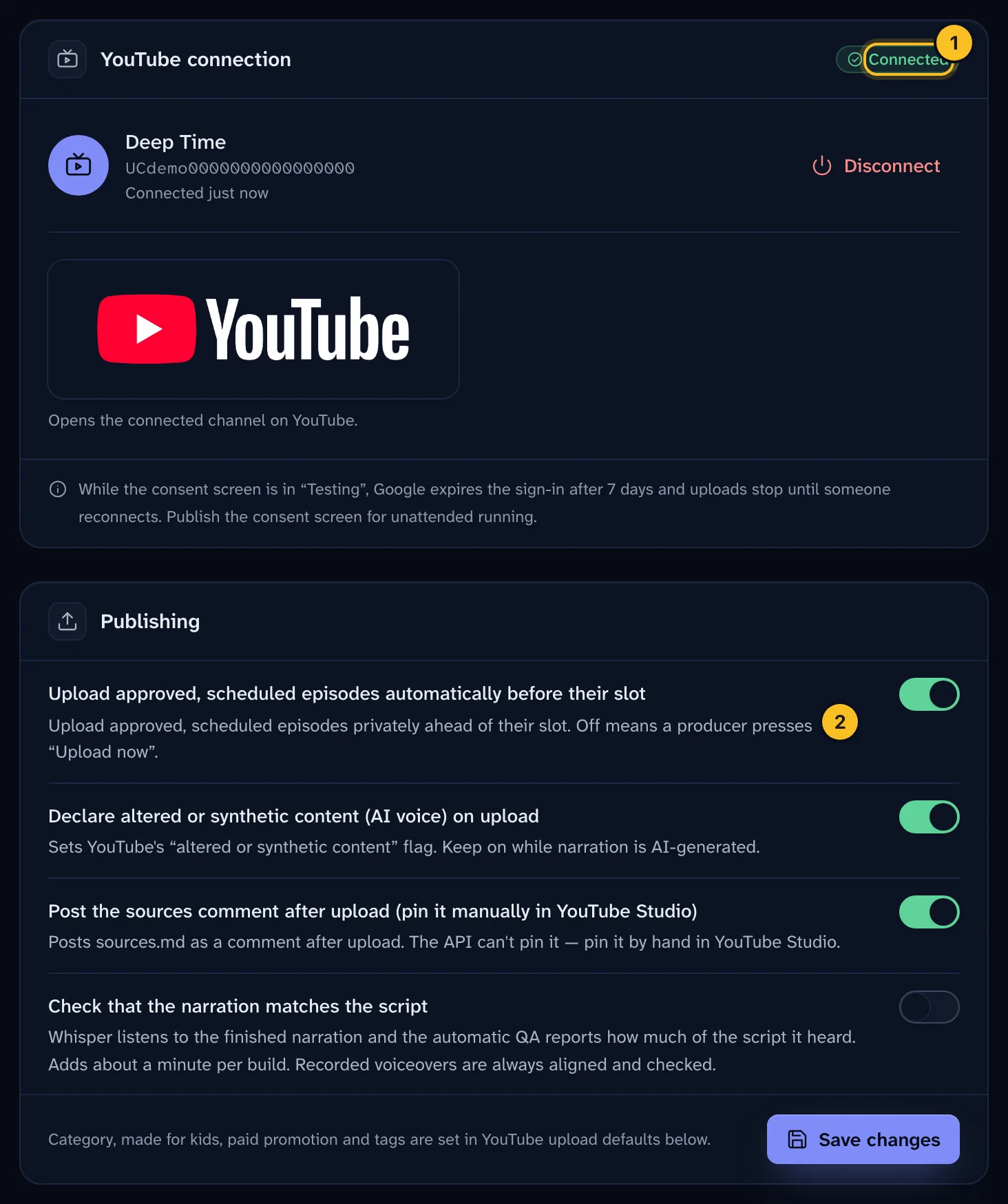
When it works, the status shows Connected and the channel name.
 (opens full size in a new tab)
If you see Setup needed, the server isn't configured for YouTube yet. Whoever runs your Veltra installation needs to add the Google OAuth client first.
Step 2: Choose your publishing settings #
In the same Settings page, under Publishing, check these switches, then select Save changes:
| Setting | What it does |
|---|---|
| Automatic upload | Uploads approved, scheduled episodes privately ahead of their slot. If it's off, someone must select Upload now. |
| Declare synthetic voice | Sets YouTube's "altered or synthetic content" flag. Keep it on while narration is AI-generated. |
| Post the sources comment | Posts the sources as a comment after upload. |
Step 3: Set your YouTube upload defaults #
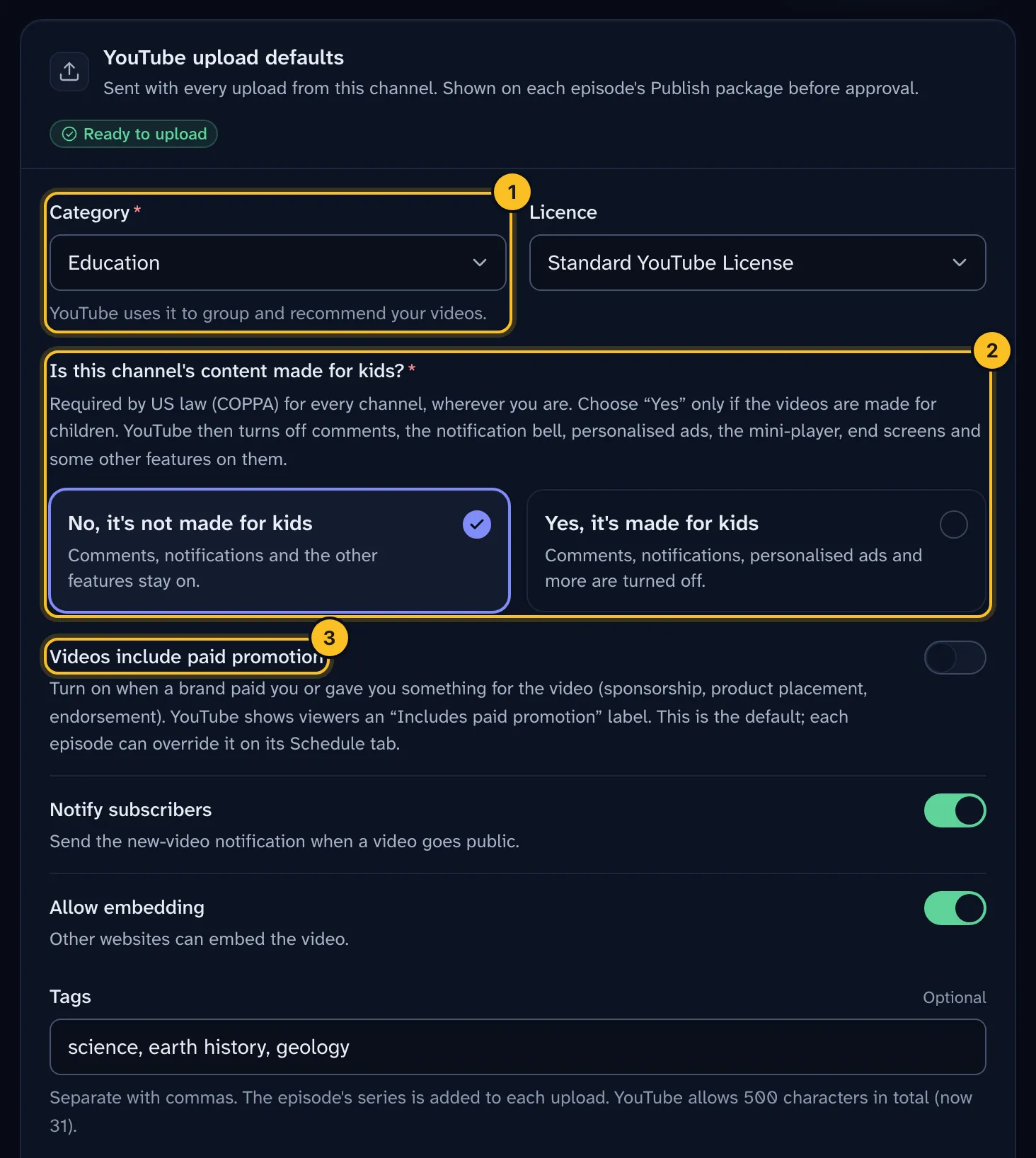
Under YouTube upload defaults, choose what every upload from this channel tells YouTube, then select Save upload defaults. A new channel can't upload until you save this once.
 (opens full size in a new tab)
| Setting | What to choose |
|---|---|
| Category | The YouTube category that fits your channel. Education is pre-selected. |
| Made for kids | Required by law (COPPA). Choose Yes only if the videos are made for children. YouTube then turns off comments, notifications and personalised ads. |
| Videos include paid promotion | Off by default. Turn it on only if brands pay you. Each episode can override it. |
| Tags | Comma-separated. The episode's series is added. YouTube allows 500 characters in total. |
| Languages | Empty follows the episode. Audio language also sets the captions. |
| Description disclosure and footer | Optional first and last paragraph of every description. |
| Licence, Allow embedding, Notify subscribers | YouTube's standard options. |
Paid promotion for one video #
If one video is sponsored, open the episode's Schedule tab. Under Paid promotion, choose This video includes paid promotion, then Save. This wins over the channel default. Once the video is on YouTube, change it in YouTube Studio.
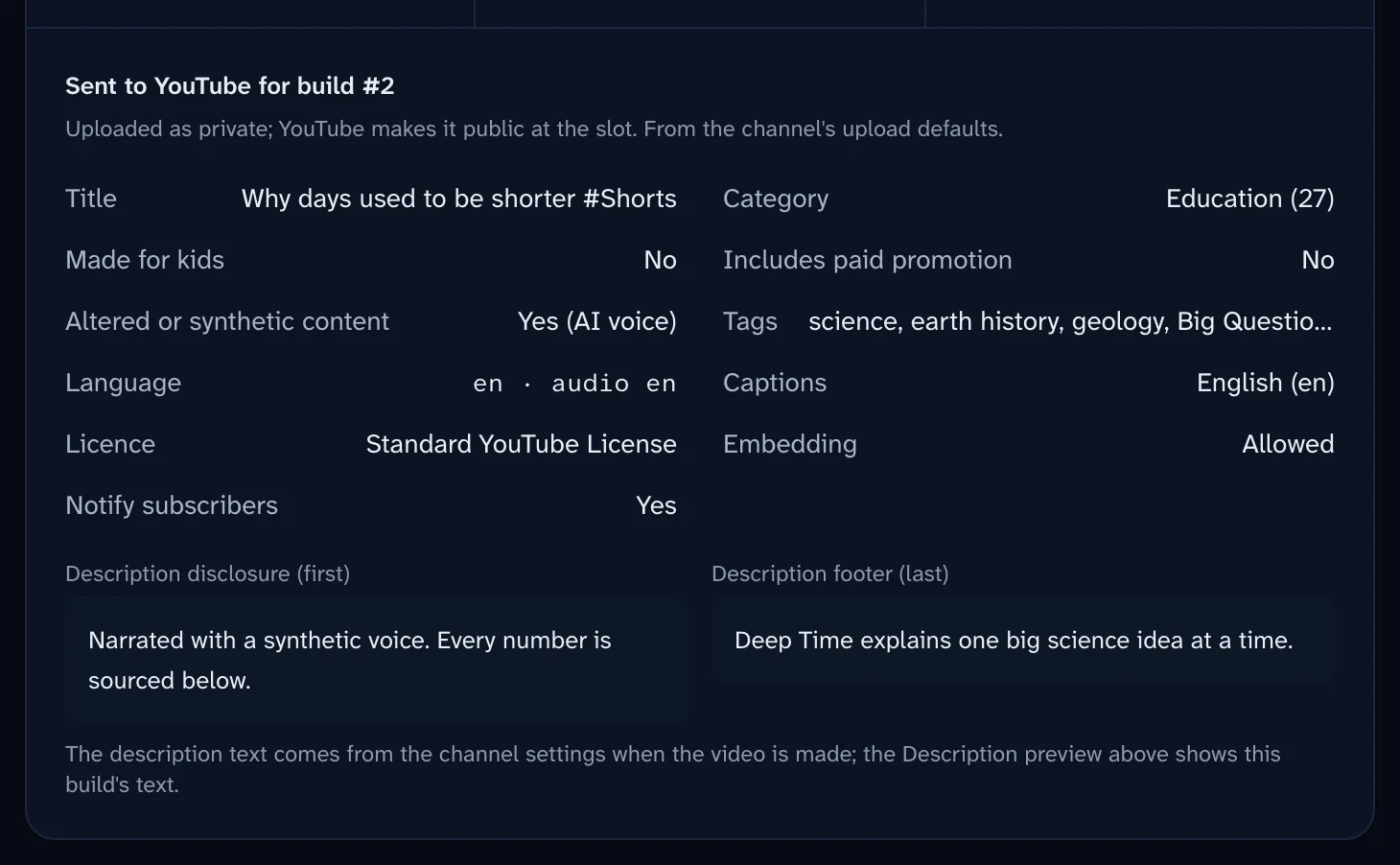
Before you approve, the episode's Publish package tab shows exactly what will be sent: category, made for kids, paid promotion, synthetic content, tags, language and licence.
 (opens full size in a new tab)
Step 4: Set a cadence #
- Open Schedule.
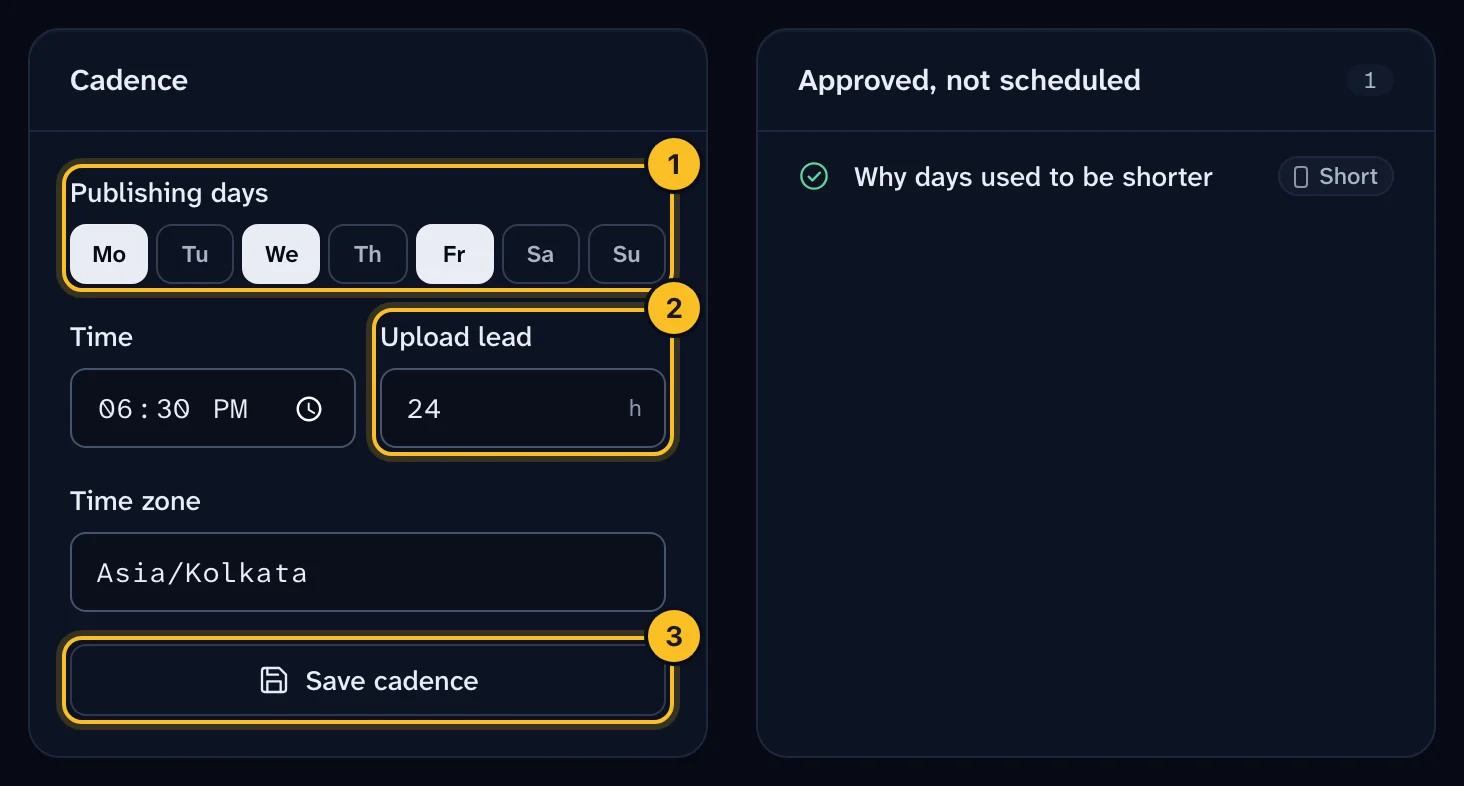
- Under Cadence, pick your Publishing days, a Time and a Time zone.
- Set the Upload lead in hours. This is how long before the publish time Veltra uploads the video. It can be 1 to 168 hours. The default is 24.
- Select Save cadence.
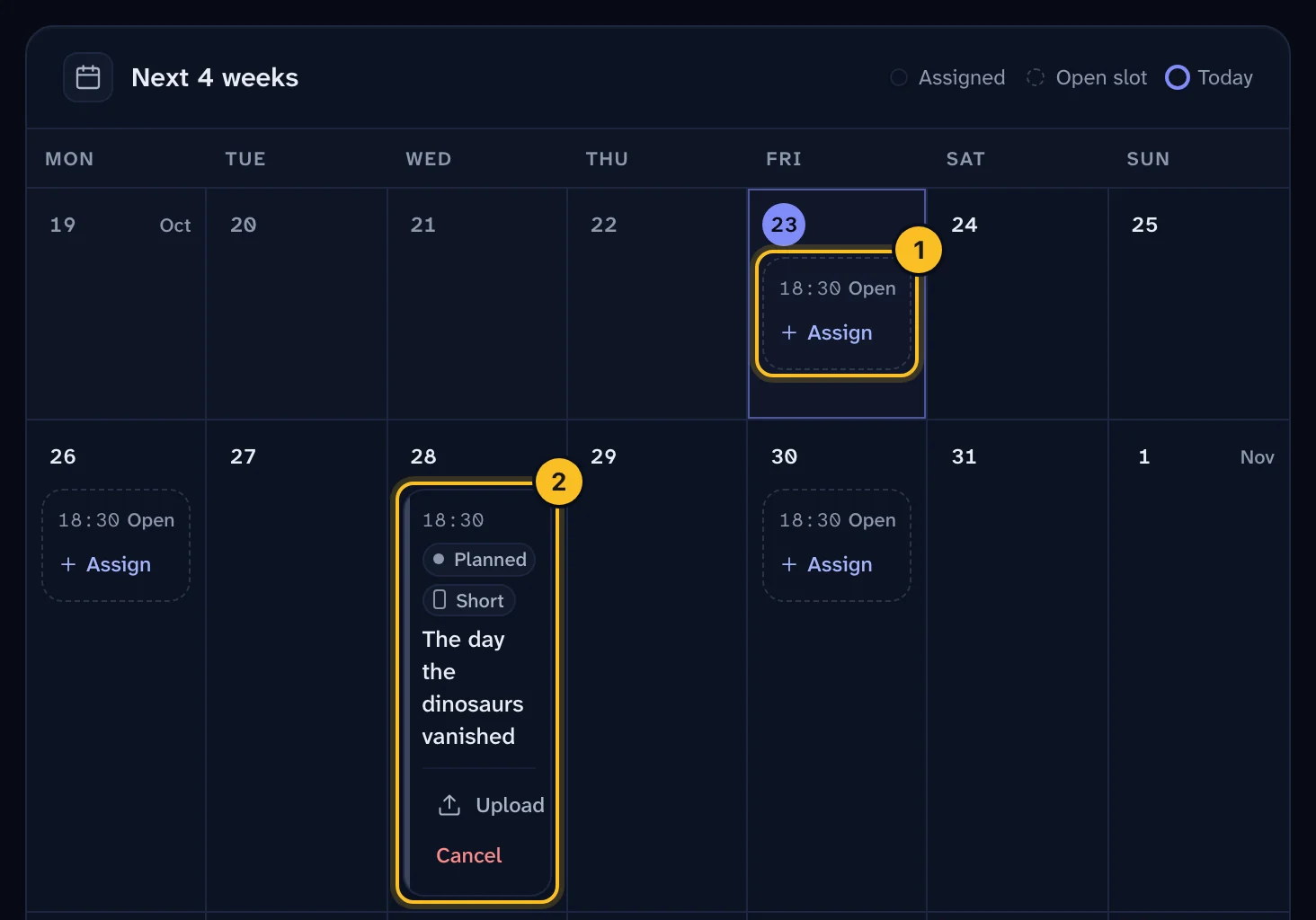
Veltra creates open slots for the next four weeks.
 (opens full size in a new tab)
Step 5: Put an episode in a slot #
From the Schedule page:
- Find the episode under Approved, not scheduled.
- Choose an open slot, then select Assign.
Or, from the episode page:
- Under Schedule, use Pick a slot.
- Select Schedule.
To free a slot, select Cancel slot. The episode stays approved.
 (opens full size in a new tab)
What happens next #
- Upload. If Automatic upload is on, Veltra uploads the video when the upload lead starts. Otherwise, select Upload now on the schedule. The video goes up as private, with its publish time set.
- Captions and comment. Veltra uploads the caption track. If Post the sources comment is on, it also posts the sources as a comment.
- Publish. YouTube makes the video public at the publish time. Veltra then marks it Live on YouTube.
Pin the sources comment by hand #
YouTube's API can't pin comments. After each upload, pin the sources comment yourself:
- Open the video's comments in YouTube Studio.
- Find the sources comment from your channel.
- Open the comment's menu and choose Pin.
Do this before the video goes public, so viewers see the sources first.
YouTube quota #
YouTube limits how many API calls each project can make per day. Veltra shows today's usage under API quota today in Settings.
| Bucket | Daily limit |
|---|---|
| Video uploads | 100 uploads |
| Everything else | 10,000 units |
Inside the 10,000 units, a caption upload costs 400 units and a comment costs 50. A stats refresh costs about 1 unit per 50 videos. Both limits reset at midnight Pacific time.
If you hit the limit, uploads wait until the quota resets. Leave enough upload lead so a delay doesn't make you miss a slot.
Troubleshooting #
"The publish time passed before the video was uploaded. Pick a new slot." The slot passed without an upload, usually because Automatic upload was off. Assign the episode to a new slot.
"Daily upload quota used up; uploads resume after midnight Pacific." Wait for the reset, or move the episode to a later slot.
"Choose the YouTube category and whether the videos are made for kids…" The channel's upload defaults haven't been saved yet. A channel admin should complete Step 3, then select Upload now or wait for the next automatic upload.
Uploads stopped after someone selected Disconnect. Scheduled uploads stop until you reconnect. Select Connect YouTube again.
For other upload errors, see Troubleshooting.