Review and approve an episode
Check the video, leave correction notes at the exact second, sign off facts in evidence mode, and approve with the QC checklist.
9 min Reviewing
On this page
Every video must be approved before it can be scheduled. Who approves depends on the channel's approval policy. This guide shows you how to review one, from checking facts to the final decision.
Before you start #
- You need a reviewer role on the channel: SME reviewer, Script reviewer or Video reviewer. A Commenter can add notes but can't approve.
- The episode must be Being reviewed or Needs changes, with a finished video.
- Set aside time to watch the whole Short with sound.
Open the episode from Waiting on you on your home page, or from the episode list.
Who approves #
A channel admin picks the policy in Settings, under Review & evidence.
| Policy | Approval needs, on the latest video |
|---|---|
| One approver | One reviewer or channel admin. Running the channel alone? Approve your own video. |
| Two people | Two different people with review permission. |
| SME technical review | An SME reviewer (subject-matter expert: medical, engineering, finance, etc.) plus a script or video reviewer, two different people. Needs evidence mode. |
Several roles still count as one person. Evidence mode (for health, finance or news channels) means every number needs a cited source and a sign-off (Step 2). Without it, skip Step 2.
Step 1: Watch the video #
Watch the whole Short, start to finish, with sound. Listen for how each number is spoken. Check that the captions match the voice.
Step 2: Sign off each fact (evidence mode) #
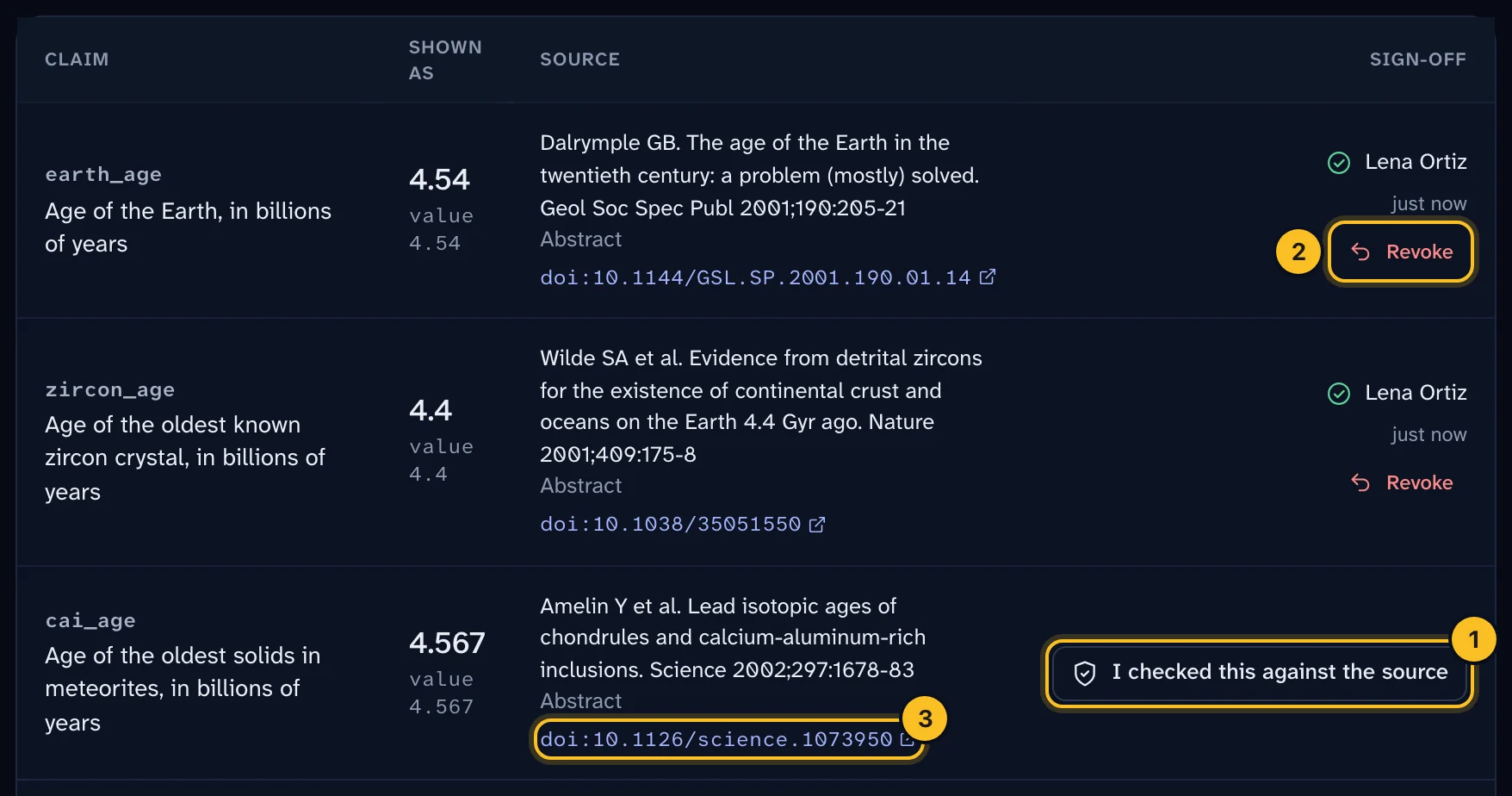
In evidence mode, every number in the video is a claim with a cited source. SME reviewers, script reviewers and channel admins can sign off claims.
- Go to Claims & sources.
- For each claim, open the source.
- Check that the number, the wording and the locator all match the source. The locator tells you where to look, for example "Table 2".
- Select I checked this against the source.
 (opens full size in a new tab)
A claim marked Derived from another claim is calculated from other claims. It doesn't need its own sign-off.
If a claim's text, value or source changes later, its sign-off resets. To withdraw your sign-off, select Revoke. Approval is then blocked until someone signs it again.
Step 3: Add correction notes #
Notes tell the editor exactly what to fix, and where.
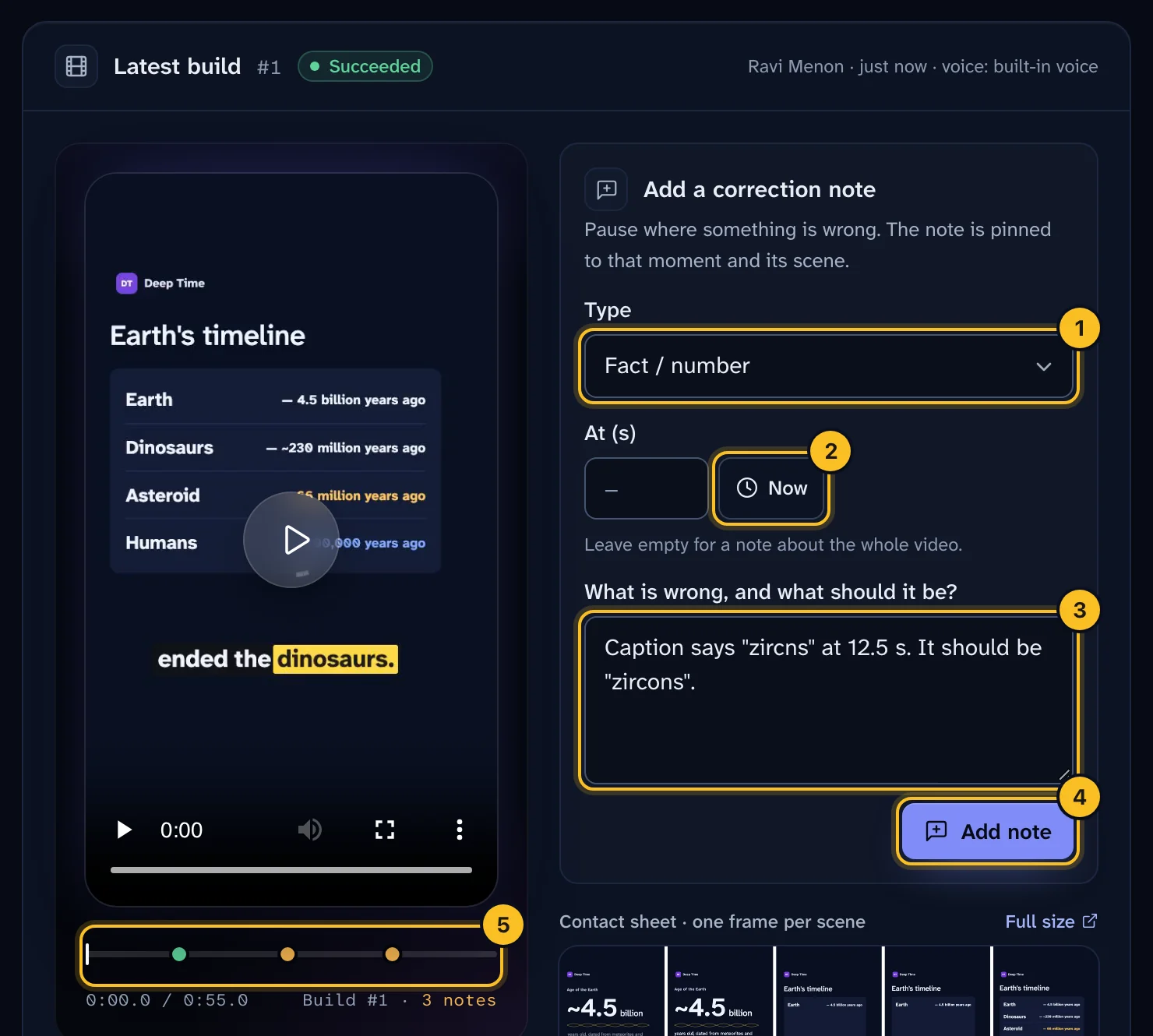
- Pause the video at the moment something is wrong.
- Under Add a correction note, pick a Type: Fact / number, Script, Visual, Audio / voice, Captions or Other.
- Select Now to fill At (s) with the current time. Leave it empty for a note about the whole video.
- Write what is wrong and what it should be. For example: "Caption says 'decilitre' with a typo at 12.5 s."
- Select Add note.
 (opens full size in a new tab)
An editor fixes it, makes the video again, and closes the note as Resolved or Won't fix. If the fix isn't right, select Reopen.
Step 4: Decide #
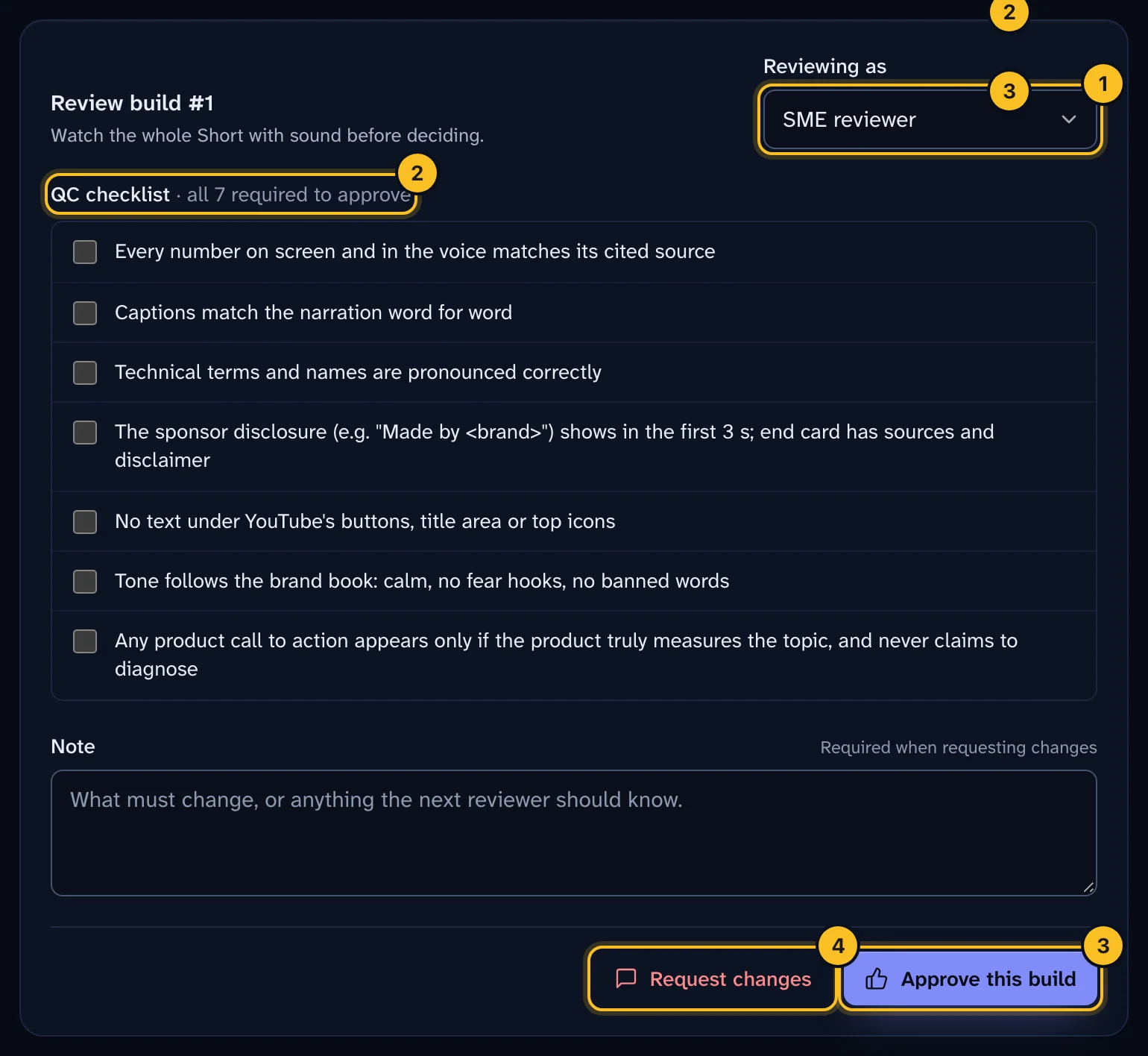
- Under Reviewing as, choose your role.
- Work through the QC checklist. Every item is required to approve.
- Select Approve this build, or Request changes. A note is required when you request changes.
 (opens full size in a new tab)
In evidence mode the checklist is below; otherwise the wording is general.
| Item | What you confirm |
|---|---|
| Numbers | Every number on screen and in the voice matches its cited source. |
| Captions | Captions match the narration word for word. |
| Pronunciation | Technical terms and names are pronounced correctly. |
| Disclosure | The brand disclosure shows in the first 3 seconds, and the end card has sources and a disclaimer. |
| Safe zones | No text sits under YouTube's buttons, title area or top icons. |
| Tone | The tone follows the channel's brand book: calm, no fear hooks, no banned words. |
| Call to action | Any product step appears only where it fits the topic, and never claims to diagnose. |
If you request changes after approving, your newer decision replaces your approval.
What "blockers" mean #
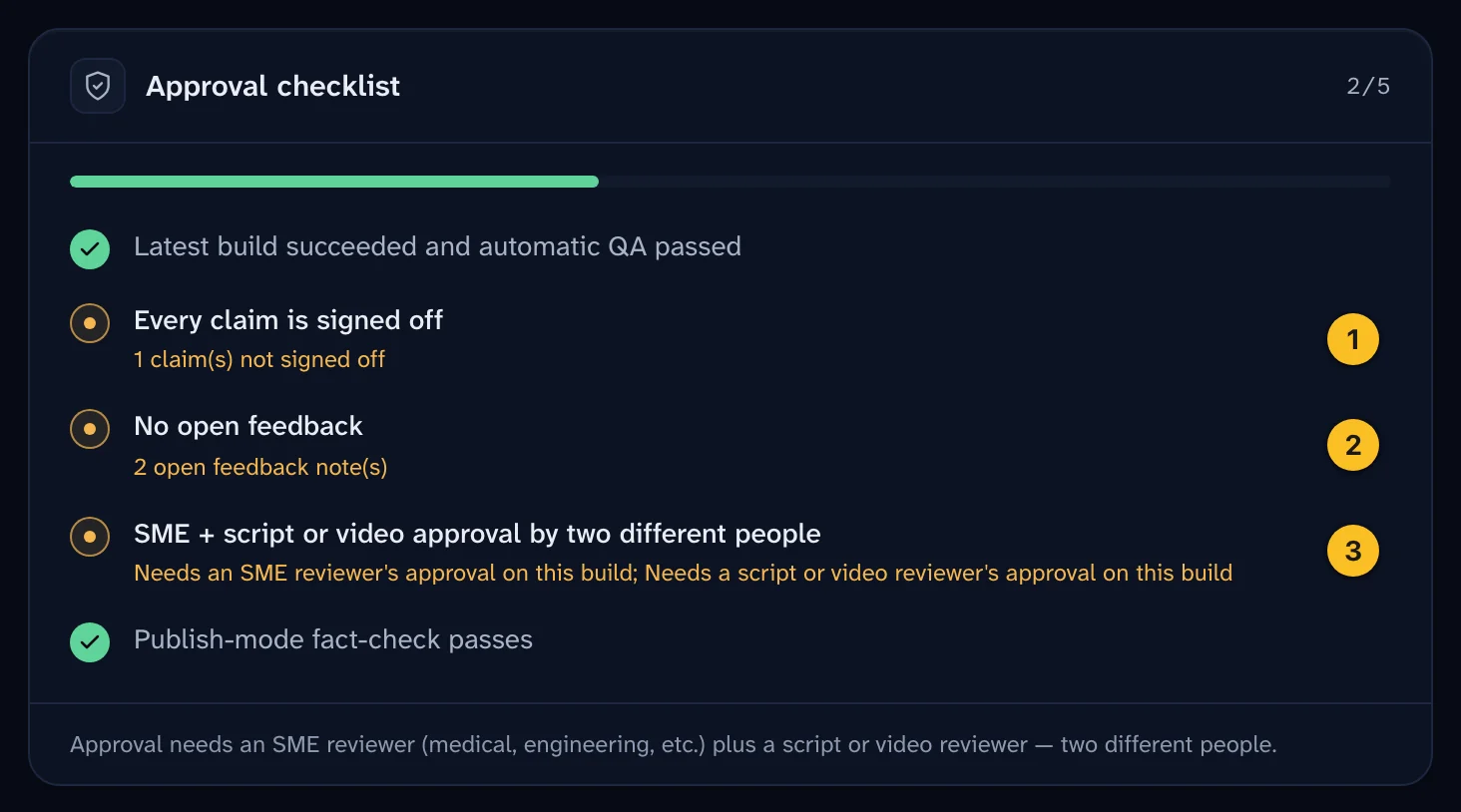
Blockers stop approval. The episode page lists them under Approval checklist. In evidence mode they are:
| Blocker | How it clears |
|---|---|
| Latest build succeeded and automatic QA passed | An editor makes the video again until the automatic checks pass. |
| Every claim is signed off | A reviewer signs off each claim. |
| No open feedback | Every correction note is closed. |
| The approvals line for your policy | The right people approve the latest video. |
| Publish-mode fact-check passes | The strict fact-check finds no errors. |
Without evidence mode, The spec passes its checks replaces the sign-off and fact-check lines.
 (opens full size in a new tab)
Approvals belong to one version of the video. After a rebuild, review the new version and approve again.
What happens next #
When the last approval lands and no blockers remain, the episode becomes Approved. If the last blocker cleared another way, for example when the final note was closed, select Mark approved.
A channel admin then schedules it. See Schedule and publish to YouTube.
AI drafts are never approved automatically. People always make the final call.
Troubleshooting #
"Your role doesn't review episodes." You don't have a reviewer role on this channel. Ask an org admin. See Invite your team and set roles.
I can't select Approve this build. The latest video hasn't finished, or it failed. Wait for it, or ask an editor to make it again.
Everyone approved, but it's still blocked. Read the blocker details. Usually a note is still open, or a claim changed and lost its sign-off.
The policy changed. That never approves anything by itself. If a video now meets the new rule, select Mark approved.