Music and sound levels
Find properly licensed music, set it under the voice, adjust sound effects, and preview the mix before you make the video.
7 min Publishing
On this page
Good background music sits quietly under the voice and never competes with it. This guide shows you how to add music with the right licence and set the levels.
Before you start #
- You need the Audio mixer or Channel admin role on the channel.
- To search for music, an org admin must add a Freesound key. See Connect AI and voice providers.
- Only use audio you own or have a licence for.
Step 1: Add music to your library #
Open Audio library from the main menu. In simple mode it's called Music.
Upload a track you own #
- Drop a file into the upload box, or select browse. WAV, MP3 and M4A files up to 30 MB are accepted.
- Set the Type to Music or Sound effect.
- Set the Licence: Owned by us, Licensed (stock), CC0 or CC-BY 4.0.
- If the licence requires credit, fill in Credit, for example "Artist — Title (CC-BY 4.0)".
- Select Upload.
Find music on Freesound #
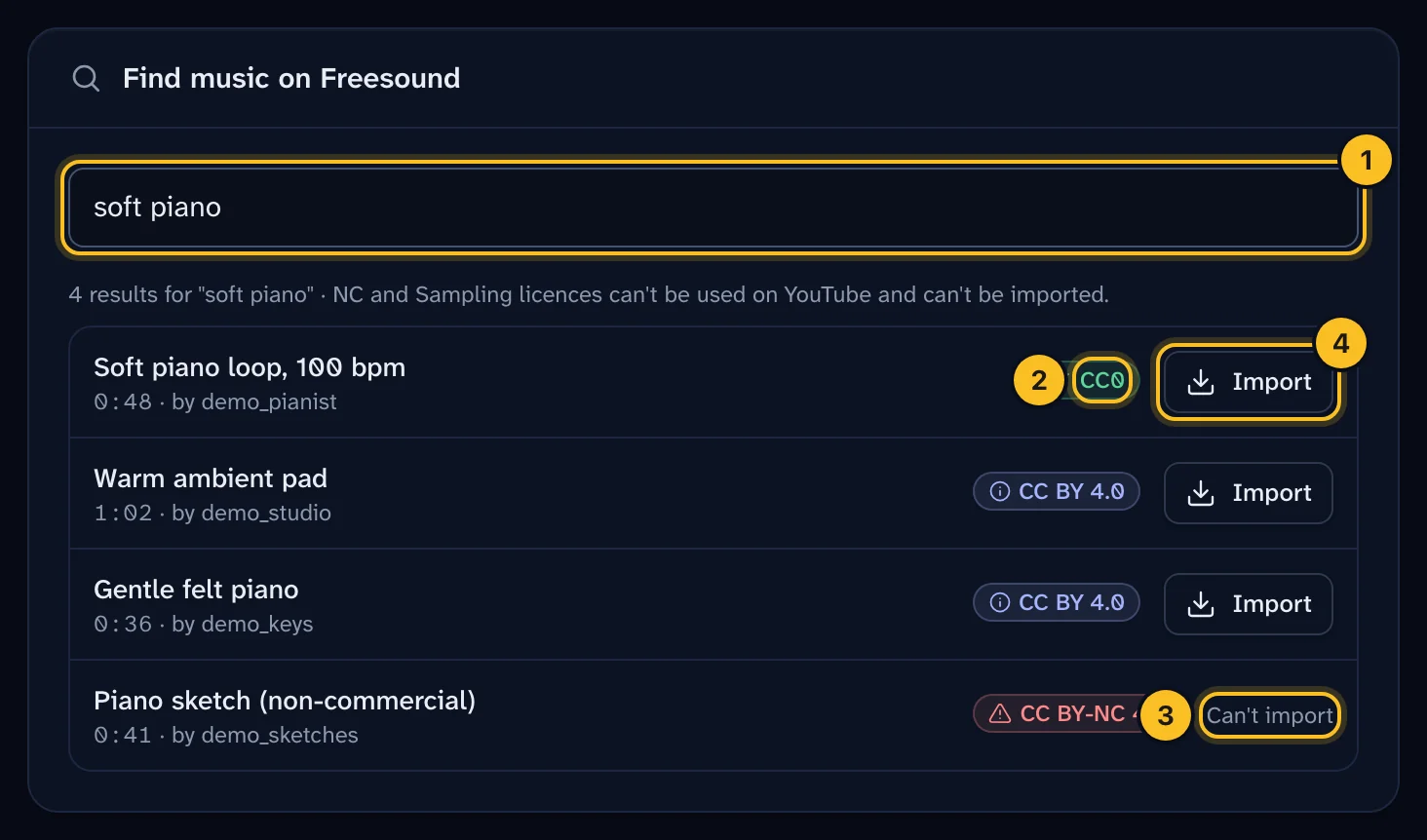
- Under Find music on Freesound, type what you need, for example "soft piano 100 bpm" or "ambient pad". Instrumental tracks work best under a voice.
- Press play on a result to preview it.
- Check the licence. Results show it first.
- Select Import.
 (opens full size in a new tab)
Veltra only offers tracks you can use: CC0 and CC-BY. Tracks with other licences, such as non-commercial ones, show Can't import.
Imported tracks keep their licence and credit:
| Licence | What you need to do |
|---|---|
| CC0 | Nothing. No credit is needed. |
| CC-BY 4.0 | Nothing extra. Veltra adds the credit to the video description for you. |
Step 2: Pick the music #
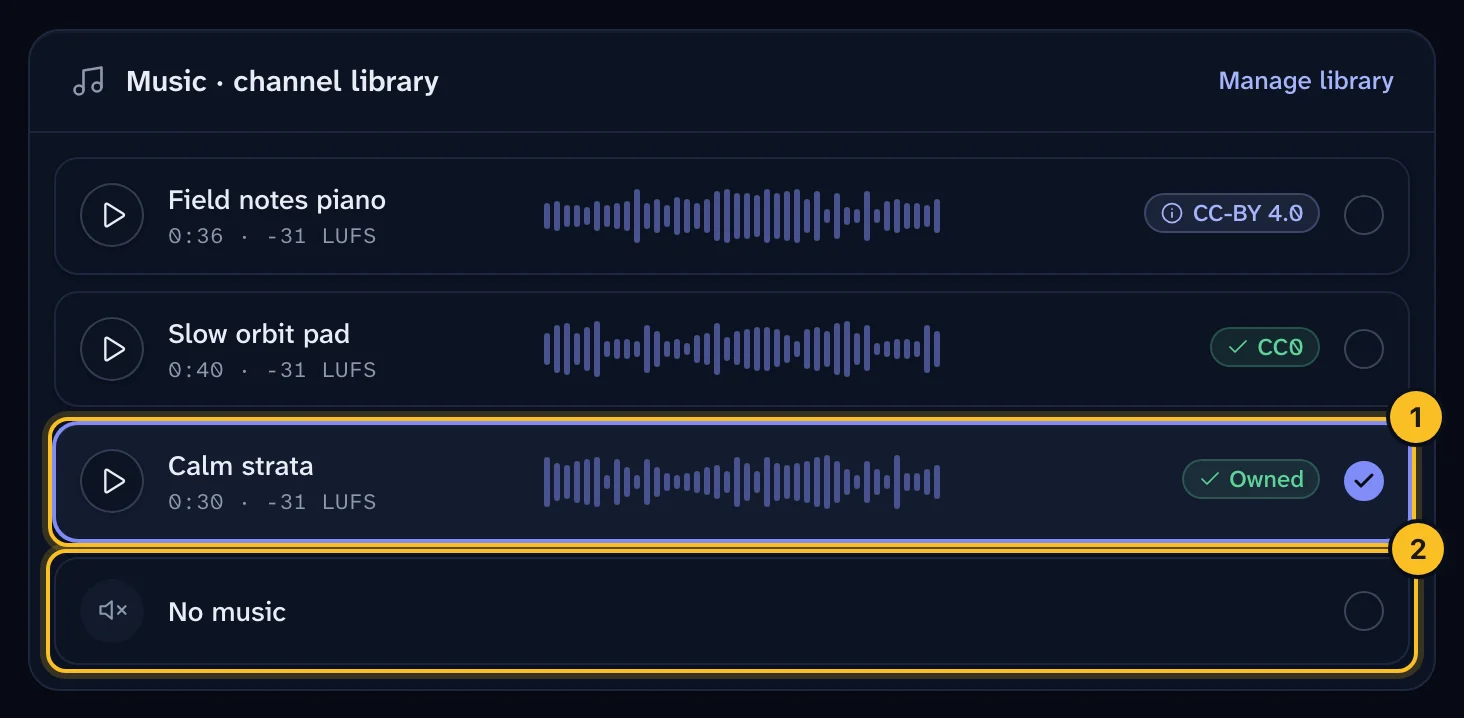
In the Create a video wizard, the Background music list on the Look & sound step shows your library. Press play to hear each option, then pick one or choose No music.
For more control, use the mixer. Open the episode and select Mixer. You need advanced mode: open your user menu and choose Advanced under View.
- Under Music track, pick a track from the channel library, or choose No music.
- To search without leaving the page, use Find music.
 (opens full size in a new tab)
Step 3: Set the levels #
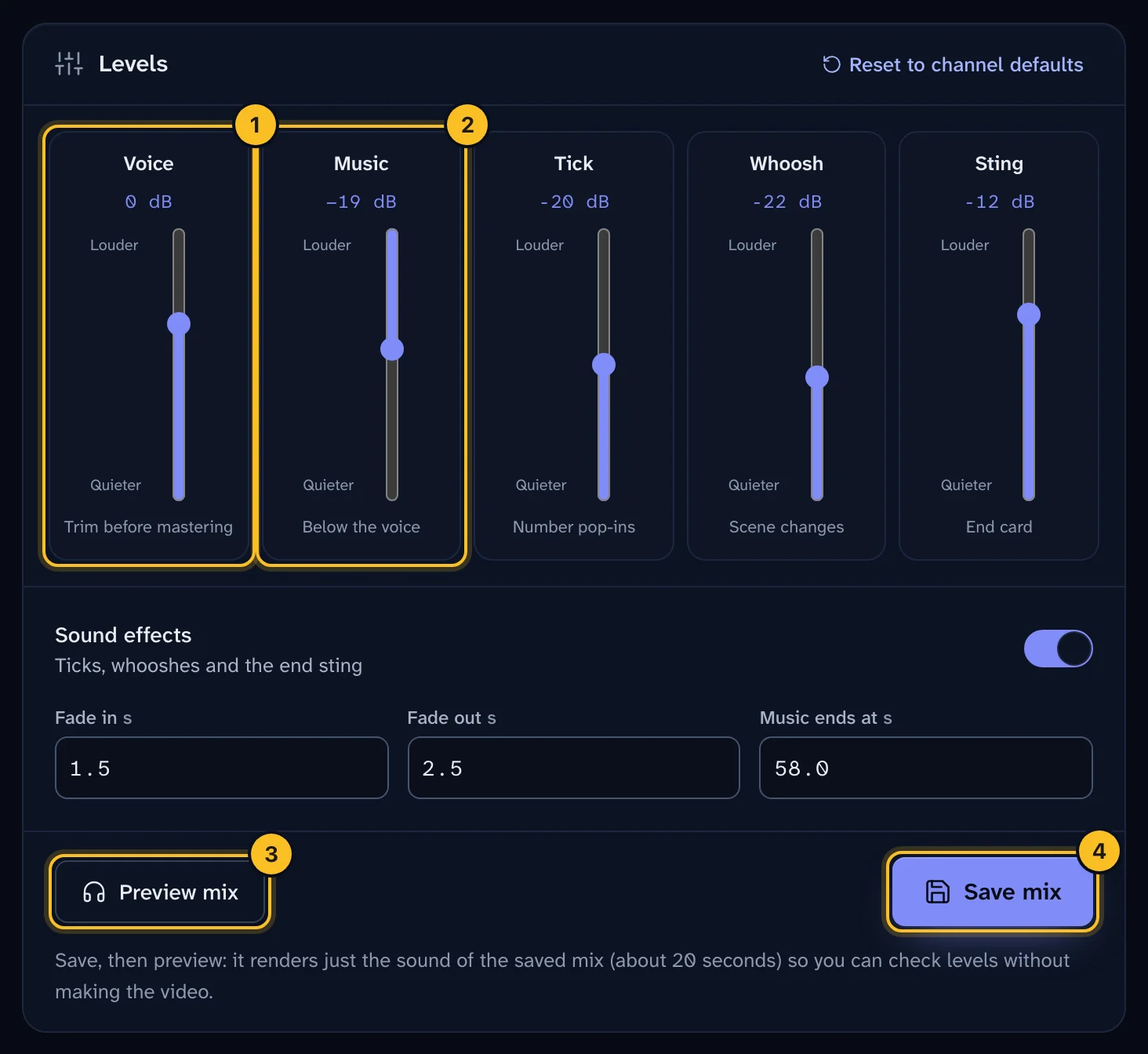
The mixer has a fader for each part of the sound. Each one shows Louder at one end and Quieter at the other.
| Control | What it does |
|---|---|
| Voice — Trim before mastering | Raises or lowers the narration before the final level is set. |
| Music — Below the voice | How far the music sits under the voice, in dB. The default is 19 dB. A bigger number makes the music quieter. |
| Fade in / Fade out | How long the music takes to fade in at the start and out at the end, in seconds. |
| Music ends at | The second at which the fade-out finishes. Leave it on auto to end with the video. |
| Sound effects | Levels for ticks (number pop-ins), whooshes (scene changes) and the end-card sting. You can also turn sound effects off. |
Select Save mix when you're done. Saving creates a new revision of the episode.
 (opens full size in a new tab)
You don't need to worry about the overall volume. The final master is always normalised to YouTube's loudness target, -14 LUFS.
Step 4: Preview the mix #
- Save your mix first.
- Select Preview mix.
The preview renders only the sound of the saved mix. It's quick, so you can check levels without making the whole video. Listen on headphones and on a phone speaker if you can. Make sure every word is clear over the music.
When it sounds right, make the video again.
What happens next #
Reviewers listen for pronunciation and clarity as part of the QC checklist. The automatic quality check also measures loudness and clipping. See Review and approve an episode.
Troubleshooting #
"Music search needs a Freesound key." Ask an org admin to add one in Settings → API keys.
The music drowns out the voice. Raise Below the voice, for example from 19 to 22, then preview again.
"This episode can't be changed in its current status." Scheduled and published episodes are locked.
The video failed after I picked a track. A music file that can't be found stops the mix. Pick the track again from the library, save, and make the video again. See Troubleshooting.