Use your own voice
Narrate a video yourself. Record the script, upload it, check it against the words, and choose where the Whisper transcription runs.
6 min Publishing
On this page
You don't have to use a synthetic voice. Read the script yourself, upload the recording, and Veltra times the captions and scenes to your voice. It uses Whisper, an open-source speech recognition model, to find when each word is spoken.
Before you start #
- You need a role that can change an episode's narration: Channel admin, Script editor or Audio mixer.
- Finish the script first. The recording must match the words in the current script, so record after the last script change.
- Any phone or USB microphone works. A quiet room matters more than an expensive microphone.
Step 1: Record the script #
- Open the episode and copy the script, or read it from the screen.
- Record in a quiet room with soft surfaces. A small room full of clothes or curtains sounds better than a bare office.
- Keep the microphone a hand's width from your mouth, a little to the side.
- Leave about one second of silence at the start.
- Read every word as written, including numbers the way they appear on screen.
One clean take is easiest. You can also record several takes and edit them into one file, as long as the final file follows the script from start to finish.
| Setting | Best | Also fine |
|---|---|---|
| Format | WAV or FLAC | MP3, M4A (phone voice memos), OGG |
| Sample rate | 48 kHz or 44.1 kHz | Anything from 16 kHz up |
| Channels | Mono | Stereo |
| Length | Close to the script estimate | Up to 15 minutes |
Files can be up to 200 MB. Veltra checks every upload and refuses anything that isn't audio, contains video, or has a sample rate below 16 kHz.
Step 2: Upload the recording #
In the Create a video wizard: on Look & sound, choose My own recording next to the voices, pick your file and select Upload. Then select Next: make the video.
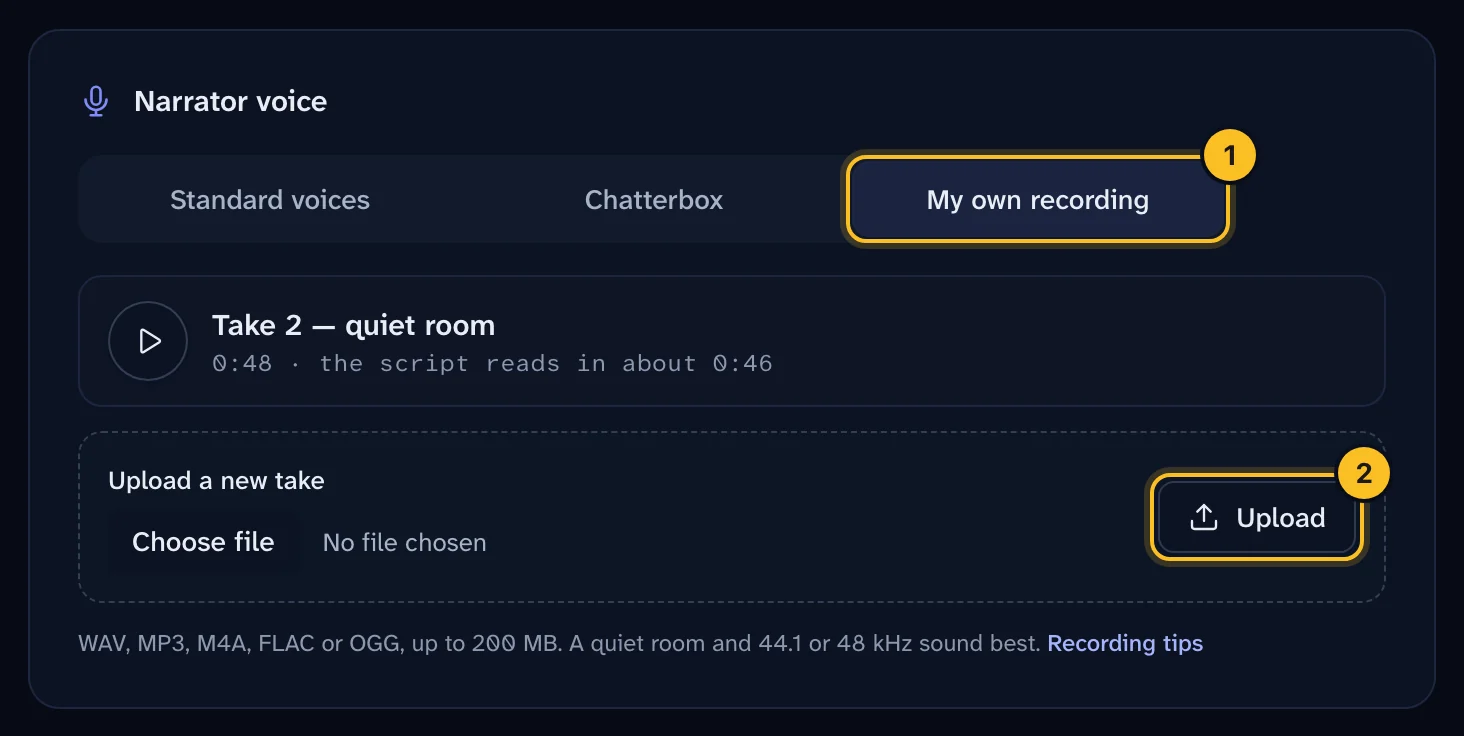 (opens full size in a new tab)
On an existing episode: open the episode and select Narration. Drop the file on the upload box, or browse for it, then select Upload and use.
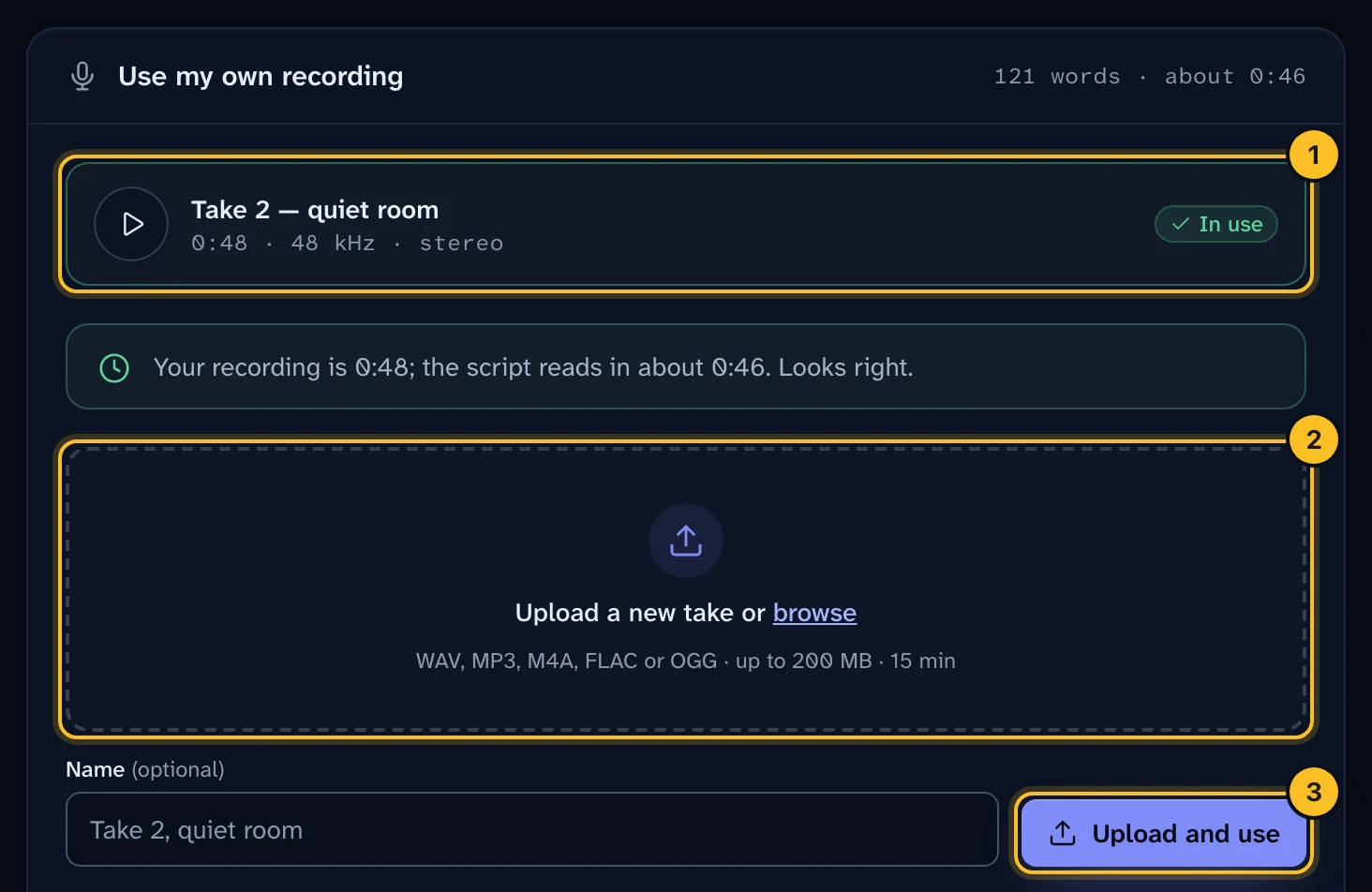 (opens full size in a new tab)
After the upload, Veltra compares the length of your recording with the script. It expects about 2.6 words a second. If your recording is much shorter or longer, you'll see a gentle warning. A short recording often means a missing paragraph. A long one usually means long pauses or extra lines.
Step 3: Check my recording #
On the Narration page, select Check my recording. Whisper listens to the file and compares it with the script, word by word. For a Short this takes about a minute. You'll see a result such as "412 of 418 words matched (98.6%)" and the first differences.
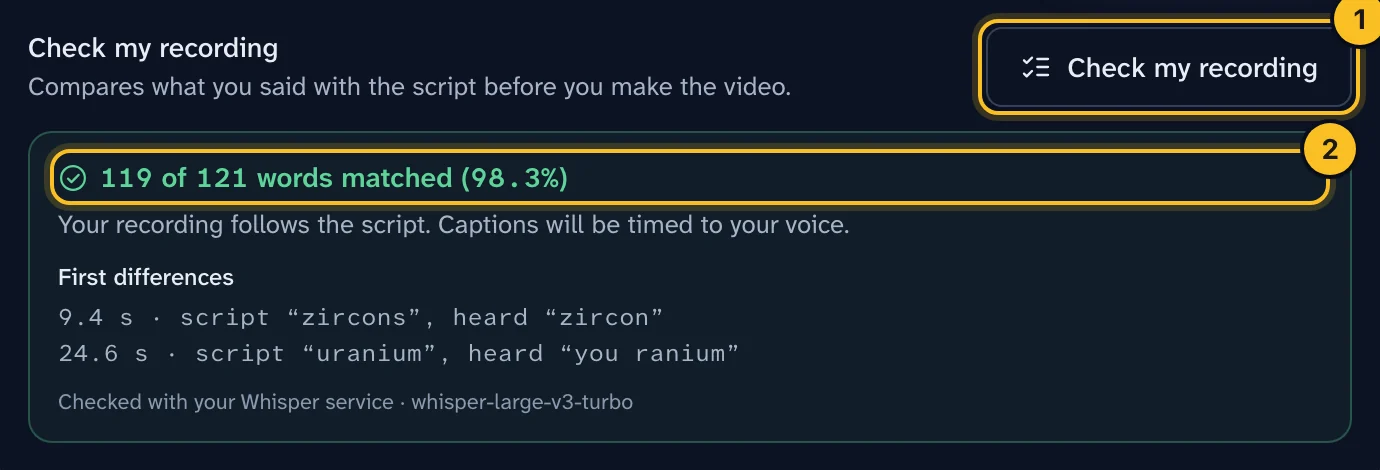 (opens full size in a new tab)
| Result | What happens |
|---|---|
| 85% or more | A match. Captions follow your voice. |
| 60% to 85% | The video still builds, with a warning. Fix the lines listed if they matter. |
| Under 60% | The build stops. Re-record, or update the script to match what you said. |
Small differences are normal. Whisper may hear "lipo protein" where the script says "lipoprotein".
Step 4: Make the video #
Make the video as usual. The build card shows the voice and the alignment, for example "voice: your recording · aligned 98.6%". The automatic QA panel shows the same result.
To go back to a synthetic voice, open Narration and choose a built-in voice. Your recording is kept, so you can switch back at any time. Earlier takes are listed under Earlier takes.
Choose where Whisper runs #
By default, Whisper runs on Veltra's own servers. It's free, needs no setup, and your audio never leaves Veltra. Org admins can send transcription to a Whisper service instead:
- Open Settings, then API keys, and find Whisper service.
- Enter the service's Base URL and Model. For OpenAI use
https://api.openai.com/v1withwhisper-1. For Groq usehttps://api.groq.com/openai/v1withwhisper-large-v3-turbo. - Paste your API key. Your own speaches or whisper.cpp server often needs none.
- Select Test connection. Veltra sends one second of silence and shows how fast the service answered. Nothing is stored.
- Select Save and test, then set Word timing & speech check to Whisper service under Which service does what.
Service URLs must use https and point to a public address. A self-hosted Veltra next to its own GPU server can allow private addresses. See Connect AI and voice providers.
Check every video (optional) #
Channel admins can turn on Check that the narration matches the script in Settings, then Channel. Every build then listens to the finished narration, synthetic or recorded, and the QA panel reports the match. It adds about a minute per build.
Troubleshooting #
The upload is refused. Export the audio only, as WAV, MP3, M4A, FLAC or OGG, at 44.1 or 48 kHz.
Only half the words matched. You probably recorded an older version of the script. Re-record from the current script.
The check takes a long time. Long videos take a few minutes on the built-in Whisper. A hosted Whisper service is faster.